In 2026 the lines between dedicated work machines and powerful gaming rigs are increasingly blurred. Many professionals especially the 87 percent of US gamers who play regularly are discovering that their high-performance gaming PCs are not just for epic quests but also for demanding work tasks. This comprehensive guide explores how you can leverage the robust hardware of your gaming setup for everything from graphic design and video editing to complex data analysis and software development. Discover smart strategies to optimize your system manage your time effectively and ensure peak performance for both your professional endeavors and your cherished gaming sessions proving that one powerful machine can truly do it all. We dive into the practical benefits potential challenges and expert tips to make your gaming PC a productivity powerhouse.
Can I really use my powerful gaming PC for everyday work?
Absolutely! A modern gaming PC boasts top-tier components like a fast CPU, ample RAM, and a powerful GPU, making it exceptionally well-suited for demanding professional tasks beyond just gaming. For many US gamers who balance jobs and play, leveraging one high-performance machine for both roles is a smart, efficient, and cost-effective strategy.
What are the key advantages of using a gaming PC for work?
The primary advantages are speed and processing power. Gaming PCs excel at multitasking, running resource-intensive applications, and handling large data sets much faster than standard office machines. This means quicker rendering for video editors, smoother simulations for engineers, and efficient data crunching for analysts, leading to significant productivity boosts.
Will professional software run smoothly on a gaming rig?
Yes, professional software like Adobe Creative Suite, AutoCAD, SolidWorks, video editing suites, and development environments often run exceptionally well on gaming PCs. The robust hardware, particularly the high-core-count CPUs and powerful GPUs (often with professional driver support for certain cards), provides a superior experience compared to standard business computers, minimizing lag and crashing.
Are there any downsides to using my gaming PC for work?
While highly capable, potential downsides include higher power consumption, sometimes louder fan noise during intensive tasks, and often a more "gamer" aesthetic that might not fit a professional home office. Additionally, if the PC is primarily for gaming, optimizing for work might require some software adjustments or dedicated peripherals to maintain a professional environment.
How can I optimize my gaming PC for a dual work and play setup?
Optimization involves creating separate user profiles, streamlining startup programs, using a dedicated work browser, and possibly investing in ergonomic work-focused peripherals. Ensure drivers are up-to-date, and consider software like Windows Power Plans to switch between performance (for gaming) and balanced (for work) modes. Regular maintenance also keeps it running smoothly.
Is it cost-effective to use one PC for both gaming and work?
For most users, especially the 87% of US gamers who game regularly, it's incredibly cost-effective. Instead of buying two separate high-performance machines, a single gaming PC can handle both roles expertly. This saves on initial hardware costs, reduces power consumption compared to two active machines, and simplifies maintenance, making it a smart long-term investment.
What specific components in a gaming PC benefit professional applications most?
The CPU (especially those with many cores), high-speed RAM (16GB minimum, 32GB or more ideal), and the GPU are critical. For tasks like 3D rendering, video editing, or machine learning, a powerful GPU is indispensable. Fast NVMe SSD storage also significantly reduces load times for large files and applications, boosting overall responsiveness.
Hey fellow gamers! Ever found yourself staring at your beastly gaming rig, a machine built for epic adventures and high-octane action, and wondered, "Can this powerhouse actually handle my day job?" If so, you're definitely not alone. In 2026, with 87% of US gamers regularly diving into virtual worlds and many averaging over 10 hours a week, the idea of having a separate, less powerful PC for work just doesn't make sense for everyone. We're busy adults, balancing careers, families, and our passion for gaming. The good news? Your gaming PC isn't just capable; it's often overqualified for most professional tasks, offering unparalleled speed and efficiency.
This guide is for you: the dedicated gamer who wants to maximize their hardware investment and streamline their digital life. We’ll explore how to transform your high-performance gaming machine into a productivity titan, tackling everything from intensive creative work to everyday office tasks with ease. We’ll cover the benefits, potential pitfalls, and smart strategies to ensure your rig excels whether you're building empires in your favorite strategy game or building spreadsheets for your boss. Let's make that powerful investment work harder for you, so you can enjoy your game time even more!
Can you truly use a gaming PC for serious professional work?
Absolutely, without a doubt! In fact, modern gaming PCs are often better equipped than many dedicated "workstations" when it comes to raw processing power and graphical capabilities. Components like multi-core CPUs, abundant RAM, and high-performance GPUs, essential for rendering complex game worlds, are equally vital for demanding professional applications. Think about video editing software like Adobe Premiere Pro, 3D modeling tools such as Blender or AutoCAD, software development environments like Visual Studio, or even intensive data analysis in Python – all thrive on the kind of hardware found in a quality gaming rig. You're leveraging horsepower typically reserved for immersive gaming experiences to crush your professional to-do list.
What makes a gaming PC so powerful for productivity tasks?
The secret lies in its robust architecture. Here's a quick breakdown:
CPU (Central Processing Unit): Gaming PCs typically feature high-core-count processors from Intel or AMD. These CPUs, like the Intel Core i9 or AMD Ryzen 9 series, excel at multitasking and handling complex calculations simultaneously, which is perfect for compiling code, rendering videos, or running multiple applications at once.
GPU (Graphics Processing Unit): A high-end NVIDIA GeForce RTX or AMD Radeon RX GPU is not just for beautiful game visuals. It's a parallel processing powerhouse, accelerating tasks like video rendering, graphic design, machine learning, and even scientific simulations. For many creative professionals, the GPU is as important as the CPU.
RAM (Random Access Memory): Gaming demands fast, plentiful RAM. Most gaming rigs come with 16GB, but many opt for 32GB or even 64GB. This massive memory capacity allows you to open dozens of browser tabs, run multiple design applications, and juggle large files without a stutter, preventing frustrating slowdowns.
Fast Storage (NVMe SSDs): Gone are the days of slow HDD boot times. Gaming PCs universally use NVMe Solid State Drives (SSDs), which offer lightning-fast read/write speeds. This translates to quicker operating system boots, instant application launches, and rapid file transfers, significantly boosting overall work efficiency.
Which types of work benefit most from a gaming PC's capabilities?
While a gaming PC can handle basic office tasks with ease, certain professions truly shine when powered by a high-end rig. Consider these fields:
Content Creation (Video Editing, Graphic Design, Streaming): This is a no-brainer. Fast GPUs and CPUs dramatically cut down render times, smooth out playback, and handle complex effects. If you're creating videos for YouTube or streaming on Twitch, your gaming PC is already perfectly suited.
Software Development & Engineering: Compiling large codebases, running virtual machines, or simulating complex engineering models all demand significant CPU and RAM resources, which gaming PCs provide in spades.
3D Modeling & Animation: Artists using Blender, Maya, or SolidWorks rely heavily on both CPU and GPU for rendering realistic scenes and fluidly manipulating complex models. Gaming GPUs often offer comparable performance to professional-grade cards for many common tasks.
Data Science & Machine Learning: The parallel processing power of modern GPUs is increasingly vital for training AI models and crunching massive datasets, making a gaming PC an accessible entry point for these demanding computational tasks.
What are the potential downsides of using a gaming PC for work?
While powerful, there are a few considerations to keep in mind when using your gaming rig as a daily driver for work:
Noise Levels: High-performance components generate heat, and powerful fans can get noisy, especially under heavy load. This might be distracting during video calls or in a quiet office environment. Investing in quiet fans or liquid cooling can help.
Power Consumption: Gaming PCs are designed for performance, not necessarily energy efficiency. They draw more power than a typical office PC, which can impact your electricity bill over time. However, during non-intensive work, the power draw is much lower.
Aesthetics & Form Factor: Many gaming PCs feature flashy RGB lighting, aggressive designs, and larger cases. This aesthetic might not align with a minimalist or professional office setup. Fortunately, many manufacturers now offer sleek, understated gaming PCs that blend in better.
Portability: Desktops are generally not portable. If your work requires you to move your computer frequently, a gaming laptop or a lighter work laptop might be a better companion, though modern gaming laptops are increasingly powerful and lighter.
How can you optimize your gaming PC for a seamless work environment?
Making your gaming PC a work-ready machine involves a few smart adjustments:
Create Separate User Profiles: This is crucial. A dedicated work profile keeps your work applications, files, and browser history separate from your gaming setup. It also allows for different desktop backgrounds and settings, helping you mentally switch gears.
Manage Startup Programs: Disable unnecessary gaming launchers (Steam, Epic Games, Battle.net) and other background apps from launching with Windows. This frees up RAM and CPU cycles for work applications.
Optimize Power Settings: Windows Power Plans allow you to switch between "High Performance" for gaming and "Balanced" or "Power Saver" for less intensive work tasks. This can reduce fan noise and power consumption when full power isn't needed.
Organize Your Workspace: Keep your digital and physical workspace tidy. Use folders, disable distracting notifications, and consider a clean, professional desktop background for your work profile.
Driver Updates: Ensure your GPU drivers are always up-to-date, as these often include performance optimizations for both games and professional applications.
Will using my gaming PC for work impact its lifespan or gaming performance?
Generally, no, not significantly, especially with proper care. Modern PC components are built to last and can handle continuous workloads. Running demanding work applications like video rendering might put similar stress on your CPU and GPU as gaming, but it's well within their design parameters. The key is good maintenance:
Keep it Clean: Dust buildup is the enemy of electronics. Regularly clean out your PC's fans and heatsinks to ensure optimal airflow and prevent overheating, which can shorten component lifespan.
Monitor Temperatures: Use monitoring software (like HWMonitor or MSI Afterburner) to keep an eye on CPU and GPU temperatures during heavy loads, both gaming and work. If temperatures consistently run very high, consider improving your case's airflow or upgrading your cooling solution.
Don't Overclock Indiscriminately: While overclocking can boost performance, a stable overclock is more important for work. If you plan to heavily overclock, ensure it's stable under both gaming and work stress tests.
Essentially, treat your gaming PC well, and it will serve both your gaming and professional needs for years.
What peripherals should I consider for a dual-purpose setup?
Optimizing your peripherals can make a huge difference in your dual-purpose experience:
Monitor: Invest in a good quality monitor. A high refresh rate (120Hz+) is great for gaming, but also look for good color accuracy (IPS panel) and resolution (1440p or 4K) for work. A large ultrawide monitor can be incredibly productive for multitasking.
Keyboard: Many gaming keyboards are excellent for typing, especially mechanical ones. Choose a switch type that feels comfortable for long typing sessions (e.g., tactile brown switches). If RGB is too distracting, many have modes to turn it off or use a single, subdued color.
Mouse: A high DPI gaming mouse offers precision for both gaming and detailed design work. Consider one with programmable buttons for macros in work applications.
Webcam & Microphone: For professional video calls, a dedicated external webcam and a good quality microphone (perhaps a USB condenser mic) will provide much clearer audio and video than typical built-in laptop options, essential for a professional impression in 2026's remote work landscape.
Ergonomics: Don't forget an ergonomic chair and desk setup. Long hours of both gaming and working demand a comfortable and healthy posture. Your body will thank you!
How can I balance gaming and work life effectively with one PC?
This is where discipline and smart planning come into play. Many US gamers, especially those averaging 10+ hours a week, recognize the need for boundaries. Here are some strategies:
Set Clear Schedules: Designate specific blocks of time for work and for gaming. Sticking to a schedule helps prevent one from bleeding into the other.
Use Work/Gaming Modes: As mentioned, separate user profiles or even a separate desktop environment (like a virtual desktop in Windows) can help create a mental and digital barrier. During work hours, avoid opening game launchers or gaming-related communication apps like Discord (unless it's work-related).
Physical Space Separation: If possible, arrange your desk to physically distinguish between work and play zones, even if it's just a slight reorientation of your chair or monitor.
Prioritize Downtime: Remember that gaming is often a valuable form of relaxation and stress relief. Don't feel guilty about it, but ensure your work is done first. Social gaming with friends, a popular trend, can also be a great way to unwind and stay connected.
It's all about intentionality. Your powerful PC gives you the tools; it's up to you to wield them wisely for both productivity and pleasure.
Is it more cost-effective to buy a gaming PC or separate work and gaming PCs?
For the vast majority of users, especially those needing significant power for both activities, a single high-end gaming PC is considerably more cost-effective. Building or buying two separate machines that both perform well (a decent work PC and a gaming PC) would almost always exceed the cost of one top-tier gaming rig. Consider the savings:
Initial Hardware Cost: One GPU, one CPU, one motherboard, one set of RAM. You're not doubling up on expensive components.
Peripherals: While you might buy specific work peripherals, you share the core monitor, keyboard, and mouse.
Software Licenses: Often, you only need one operating system license and fewer software licenses if applications are shared.
Space & Maintenance: Less desk space, fewer cables, and only one machine to maintain and update.
In 2026, the value proposition of a single, powerful gaming PC for all your computing needs is stronger than ever.
What software optimizations can improve work efficiency on a gaming PC?
Beyond hardware, smart software choices and configurations can drastically improve your work efficiency:
Task Manager Discipline: Regularly check your Task Manager (Ctrl+Shift+Esc) to identify and close any background gaming processes or unnecessary applications hogging resources. Windows 11 offers great tools for this.
Browser Management: If your work involves many browser tabs, consider using a separate work-specific browser (e.g., Edge for work, Chrome for gaming) or utilizing browser profiles to keep work tabs distinct and prevent performance drag.
Cloud Storage & Sync: For seamless transitions and data safety, rely on cloud services like OneDrive, Google Drive, or Dropbox for all your work files. This ensures your data is accessible and backed up, whether you're on your gaming PC or another device.
Productivity Suites: Ensure you have the latest versions of your professional software. Developers are constantly optimizing for modern hardware, including powerful GPUs found in gaming PCs. Regularly check for updates.
Antivirus & Security: A robust, up-to-date antivirus program is essential for both work and play. Keep your system secure from malware that can degrade performance and compromise sensitive work data.
So, there you have it! Your powerful gaming PC is far more than just a portal to virtual worlds; it's a versatile, high-performance workstation capable of handling your most demanding professional tasks. By understanding its strengths, making a few smart optimizations, and practicing good digital hygiene, you can effortlessly switch between building spreadsheets and building civilizations. This dual-purpose approach not only maximizes your investment but also simplifies your tech setup, freeing up valuable time and mental space. Remember, modern hardware is designed for robust performance, and with a little intentionality, your gaming rig can truly do it all.
What's your biggest challenge in balancing work and play on your PC? Share your thoughts and tips in the comments below!
FAQ: Using Your Gaming PC for Work
Is a gaming GPU overkill for spreadsheets?
While a powerful gaming GPU won't directly speed up basic spreadsheet calculations, it provides excellent display output for multiple high-resolution monitors and ensures a smooth, responsive desktop experience. It's overkill for just spreadsheets but valuable for overall system fluidity.
Can I have separate user profiles for work and gaming?
Yes, and it's highly recommended! Creating separate user profiles in Windows (or macOS/Linux) allows you to have distinct desktop environments, application installations, browser histories, and settings for work and gaming, making the mental and digital transition much smoother.
What about power consumption when using a gaming PC for work?
Gaming PCs generally consume more power than office PCs. However, during light work tasks, components draw significantly less power than during intensive gaming. You can use Windows Power Plans to switch to a 'Balanced' mode for work, reducing power draw and fan noise.
Will a gaming PC be too noisy for work calls?
It can be, especially under heavy load. However, many modern gaming PCs have excellent cooling solutions that are quiet at idle or during light work. Investing in quieter fans, liquid cooling, or using a good quality headset with noise cancellation for calls can mitigate noise concerns.
Are gaming keyboards good for typing?
Many gaming keyboards, particularly mechanical ones, are excellent for typing due to their tactile feedback and durability. The choice often comes down to personal preference for switch type (e.g., linear, tactile, clicky). Some gamers even prefer them over traditional office keyboards for long typing sessions.
Do I need an expensive monitor for both gaming and work?
You don't necessarily need the most expensive, but a good quality monitor is a wise investment. Look for a balance: high refresh rates (120Hz+) for smooth gaming, and good color accuracy (IPS panel) with sufficient resolution (1440p or 4K) for comfortable, productive work. Ultrawide monitors are great for both.
Gaming PCs offer superior performance for demanding work tasks. Leverage powerful CPUs GPUs and RAM for professional applications. Cost-effective solution compared to buying separate work and gaming machines. Optimization tips for dual-purpose setups including software and peripherals. Strategies to mitigate potential downsides like noise or power consumption. Benefits for creative professionals developers and data analysts. Balancing work life and gaming with a single powerful machine.
35


Top 10 Best Desktop Computers 2026 For Home Office And Work Lenovo Legion Tower 7i 2026 High Performance Desktop Computer With RGB Lighting Featured In. An OLED Monitor Might Be The Best Upgrade You Can Make To Your PC . Office Setup With Gaming PC Highend Gaming Desktop Modern Workspace Office Setup With Gaming Pc Highend Gaming Desktop Modern Workspace Design Gaming Station Tech 1126694 80187 . Top 10 Best Desktop Computers 2026 For Home Office And Work Lenovo Legion Tower 5i 2026 Budget Desktop Computer For Home Office Among Best Desktop. Can Gaming PC Be Used For Work Unleashing Beyond Play Image 39


Can Gaming PC Be Used For Work Unleashing Beyond Play Image 41 . Can Gaming PC Be Used For Work Unleashing Beyond Play Image 37 . Can Gaming PC Be Used For Work Unleashing Beyond Play Image 40 . Gaming Desktop PC Guide 2026 Build The Ultimate Gaming Setup 2 2 3 . 12 Best Desktop Computers For Office Work In 2026 Tested Reviewed Slide11 1024x576


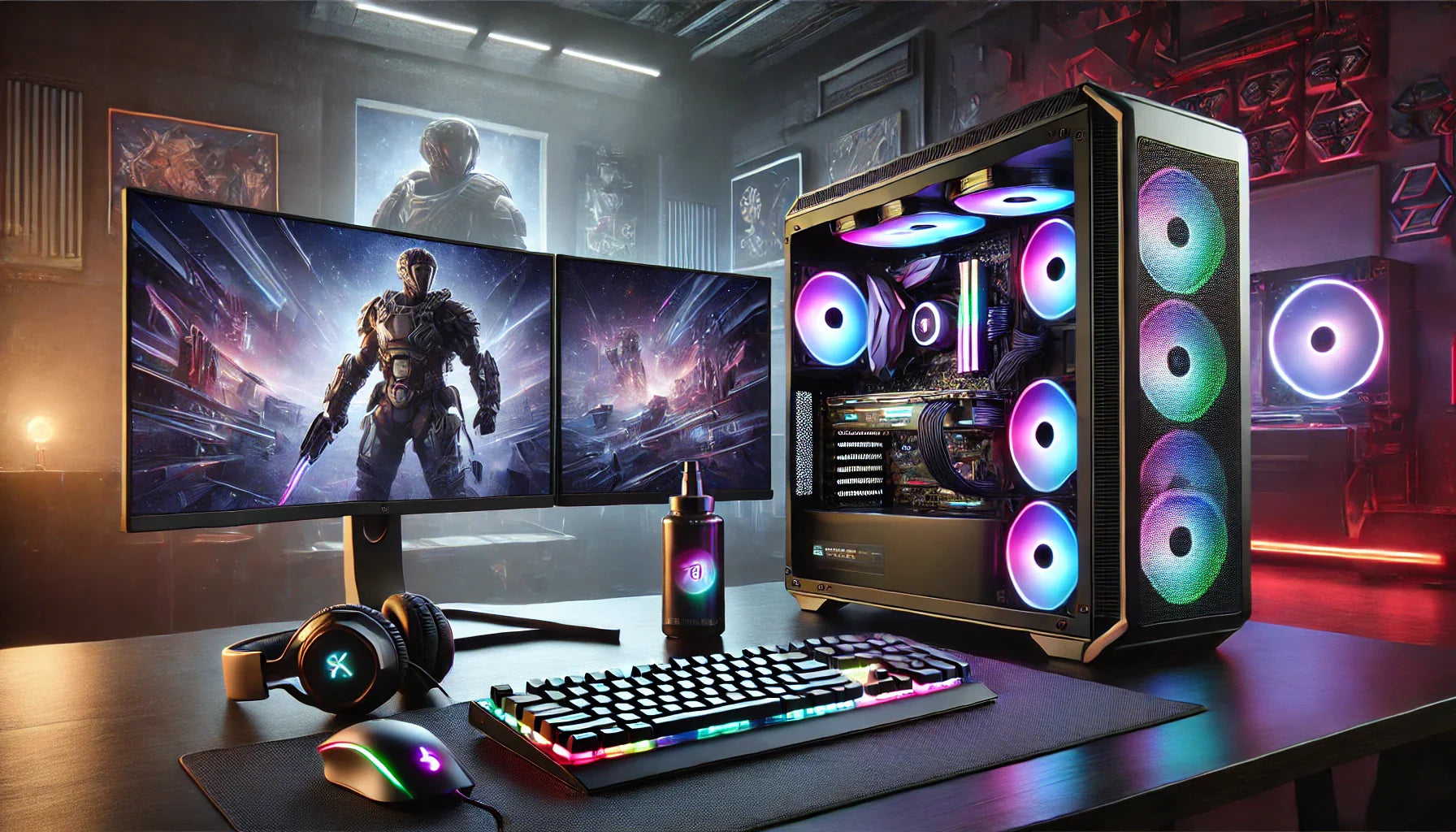

Best Desktop PCs For Work Top Picks For Best Gaming Desktop PC 2025 Main . Can Gaming PC Be Used For Work Unleashing Beyond Play Gaming PC Used For Work . Best Gaming Desktop For 600 Best Gaming Desktops . How To Build A Future Proof Gaming PC A Step By Step Guide 2025 Future Gaming Pc Build 2025.webp. 7 Best Gaming PCs Of 2026 Power Performance And Value Revealed Top Gaming Pcs 2026 1lmv2
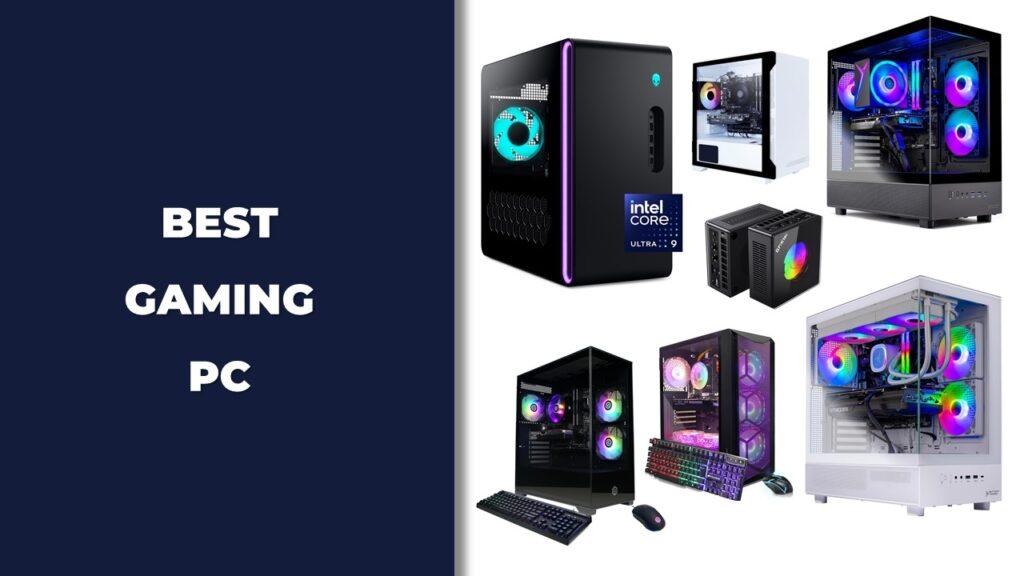
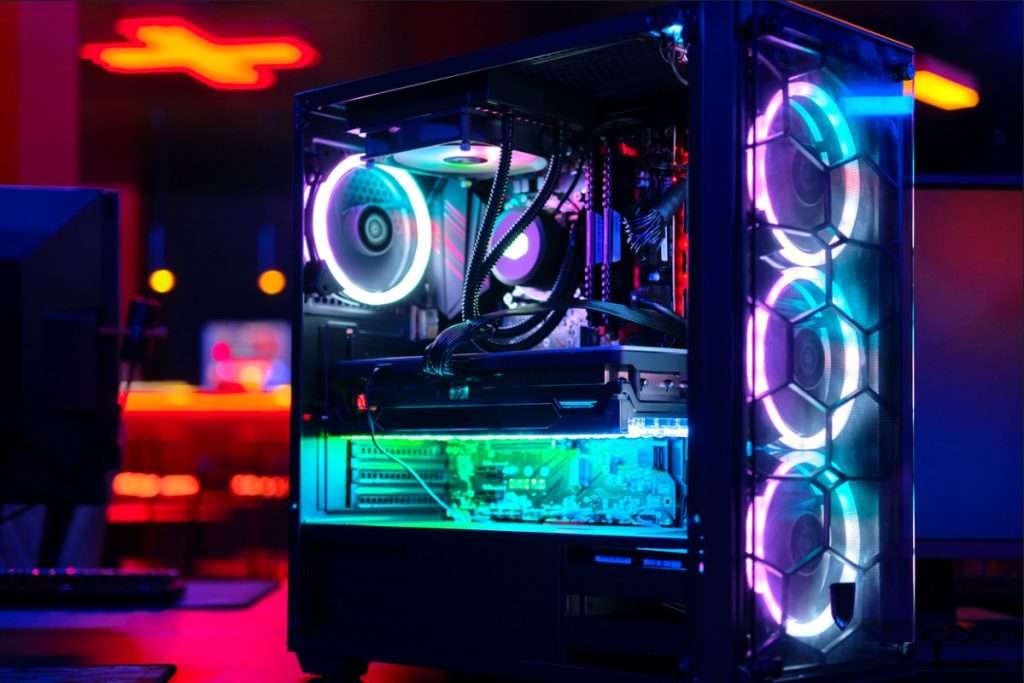

12 Best Desktop Computers For Office Work In 2026 Tested Reviewed Best Gaming PC 2 1024x576 . Can You Use A Gaming Pc For Work At Pamela Sheehan Blog . Best PC Builds For Gaming 2026 Ultimate Guide To Building Your Dream Best PC Builds For Gaming 2026 1024x683 . 6 Best Desktop Computers 2026 YouTube . Best Alienware Gaming PC 2026 Out Of This World Aurora Builds


Budget Friendly Entry Level Gaming Work PC Perfect For 1080p. Can You Use A Gaming PC For Work School Gaming AWD IT UK Untitled 2 39 . Gaming PC Budget Guide 7 Smart Rules For 2026 HP Pavilion Gaming Desktop TG01 768x768 . Best Cooling PC Gaming Top 10 Coolers 2026 Low Cost PC For Gaming 768x402 . Best Gaming PC Builds For 2026 Best Gaming PC Builds For 2026.webp


The Gaming PC You Need To Build For 2026. Best Gaming PC Under 50000 In March 2026 Gaming PC Mar 55k . The Best Gaming PC Of 2026 Top Prebuilt Desktops Gaming Pc . The Ultimate Guide To Building A PC In 2025 Computer Cave Desktop Gaming In 2026 Why Performance Issues Usually Mean Repair--Not Replacement. Can You Use A Gaming PC For Work School Gaming AWD IT UK Untitled 3 35


Best Gaming PC For Competitive Gaming 2026 Hardware Guide The Best Gaming PC For Competitive Gaming 2026 Performance Guide.webp. PC Gaming Vs Console Gaming Honest Pros And Cons In 2026 Gaming PC.webp. Top 10 Best Desktop Computers 2026 For Home Office And Work Dell Tower Plus 2026 Desktop Computer With Sleek Design And Powerful Components For Best. Can Gaming PC Be Used For Work Can Gaming PC Be Used For Work 3.webp. Top 10 Most Anticipated Games Of 2026 What To Watch Out For TVN GAMES IN 2026