For many adult gamers balancing work and life, a smooth, intuitive gaming experience is key to relaxation and fun. Roblox, a powerhouse with a massive player base, offers deep customization, but sometimes, figuring out basic settings like UI navigation can be a small hurdle. This comprehensive guide will walk you through exactly how to turn on UI navigation in Roblox across various platforms, ensuring your gameplay is as seamless as possible. We cover everything from initial setup to troubleshooting common issues, empowering you to navigate menus and in-game elements effortlessly. Discover tips to optimize your experience, learn about the different UI modes, and get answers to your most pressing questions. Our goal is to save you time and frustration, letting you focus on the immersive worlds Roblox has to offer, whether you're building, socializing, or exploring with friends. This article is your go-to resource for mastering Roblox UI navigation and enhancing every moment you spend in its vast metaverse.
How do I activate basic UI controls in Roblox if they seem off?
If your Roblox UI controls feel unresponsive or simply aren't working, the first step is often the simplest: restart the Roblox application entirely. This clears temporary glitches. On PC, ensure your mouse is active by moving it or pressing ESC to bring up the game menu. For consoles, verify your controller is connected and charged, then use the designated menu button (e.g., View on Xbox, Options on PlayStation) to confirm functionality. Mobile users should ensure their screen is clean and try restarting the app or device.
Why is my Roblox UI laggy or slow to respond on my device?
UI lag in Roblox can stem from several factors, especially for gamers balancing life and work who might not always have the latest hardware. It could be due to your device's overall performance, an unstable internet connection, or high graphics settings within Roblox. Try lowering Roblox's in-game graphics quality through the 'Settings' menu. Ensure your device's drivers are updated (PC) or that you have enough free RAM (mobile). A stable, fast internet connection is also crucial for responsive UI interactions.
Can I use a keyboard and mouse for UI navigation on my Xbox to play Roblox?
Yes, you absolutely can! If you prefer the precision of a keyboard and mouse, you can connect them to your Xbox console to play Roblox. Most USB keyboards and mice are plug-and-play compatible. This can significantly enhance your UI navigation and overall gameplay experience, especially for games that feel more natural with PC-style controls, offering a familiar setup for adult gamers who primarily use computers.
Where are the main Roblox UI settings located on PC and how do I access them?
On PC, the main Roblox UI settings are easily accessible from within any game. Simply press the 'ESC' key on your keyboard to open the in-game menu. From there, select the 'Settings' tab. Here, you'll find options to adjust graphics quality, camera sensitivity, and other general game preferences that can indirectly affect how you perceive and interact with the UI. Specific game developers may also include their own in-game settings unique to their experience.
Is there a 'full-screen' UI mode in Roblox, and how do I toggle it?
Roblox generally operates in a windowed full-screen mode on PC, meaning it fills your screen but isn't a true exclusive full-screen application. You typically don't 'toggle' a separate UI mode; the UI scales to your window or screen size. On consoles and mobile, the game naturally occupies the entire screen. If you're on PC and want to ensure Roblox is maximized, you can use the standard window maximize button or press Alt+Enter in some contexts, though the UI will simply expand within that display mode.
How do I resolve issues with specific in-game UIs not working correctly in Roblox?
If you're having trouble with the UI within a particular Roblox game (e.g., inventory buttons not responding), it often points to an issue with that specific game's script or design rather than a global Roblox problem. First, try restarting that particular game or joining a different server. If the issue persists, check if other players in that game are experiencing similar problems. Reporting the bug to the game developer is the best course of action. Sometimes, enabling 'Shift Lock' (PC) can also indirectly help by giving you more precise mouse control.
Why do I keep accidentally clicking out of Roblox when navigating the UI on PC?
Accidentally clicking out of Roblox on PC, especially during intense moments, is a common frustration for adult gamers with limited screen time. This usually happens if Roblox isn't in full-screen or maximized windowed mode, allowing your cursor to move off the game window. Ensure Roblox is maximized or in 'windowed full-screen' mode. Some games or your system settings might allow for a 'mouse lock' feature that keeps the cursor within the game window, which can be immensely helpful for uninterrupted UI navigation.
Hey fellow gamers! If you're anything like me, you carve out precious time for gaming after a long day, balancing work, family, and life's endless to-do list. When we finally dive into a game like Roblox, the last thing we want is to struggle with basic controls or menu navigation. It's frustrating to spend your limited gaming window just trying to figure out how to move a cursor or select an option. You're not alone; many of us grown-up gamers, making up a significant 60% of the player base with an average age around 36, value smooth experiences over endless tweaking. We want to relax, build skills, connect with friends, and maybe even find some value for our hard-earned cash in terms of performance and fun. That's why mastering something as fundamental as UI navigation in Roblox is a game-changer. It’s about making your time count, getting straight to the action, and enjoying the rich, creative worlds Roblox offers without unnecessary hassle. With 87% of US gamers regularly clocking in an average of 10+ hours a week, and mobile gaming dominating a huge chunk of that, having a responsive and understandable UI is more critical than ever.
This guide is your friendly, no-nonsense resource to help you understand and activate UI navigation in Roblox, ensuring you spend less time fumbling and more time having fun. Whether you're on PC, console, or mobile, we'll cover the ins and outs, troubleshooting common snags, and even sharing tips to optimize your overall experience. Let's get you navigating Roblox like a pro, so you can focus on building, adventuring, and socializing with ease!
What Exactly Is UI Navigation in Roblox and Why Does It Matter?
UI navigation, or User Interface navigation, in Roblox refers to how you interact with on-screen menus, buttons, inventory, chat windows, and other graphical elements that aren't directly part of the game world itself. Think of it as your control panel for the game. For PC players, this often means using a mouse cursor, while console players rely on controller joysticks and D-pads, and mobile users tap with their fingers. It matters immensely because a well-understood and responsive UI allows for quick access to vital game functions, seamless inventory management, efficient communication, and overall fluid gameplay. Without proper UI navigation, even simple tasks like equipping an item or accepting a friend request can become tedious, eating into your precious gaming time.
In today's fast-paced gaming landscape, especially on platforms like Roblox where cross-play and user-generated content thrive, efficient UI navigation directly impacts your enjoyment. Imagine trying to quickly change tools during an intense minigame or send a message to a new friend on Discord without a fluid UI – it's a recipe for frustration. Optimizing this aspect of your Roblox experience is a small step that yields significant returns in terms of game satisfaction.
How Do I Turn On UI Navigation on PC?
For PC gamers, UI navigation in Roblox is generally active by default, primarily managed by your mouse and keyboard. However, if you're experiencing issues or want to ensure everything is set up correctly, here's a quick rundown:
- Mouse Interaction: Most of the time, your mouse cursor will automatically appear when you need to interact with menus. If you're in a game and the cursor isn't visible, try moving your mouse around or pressing the ESC key to bring up the Roblox menu. This often reactivates the cursor for UI interaction.
- Keyboard Shortcuts: The keyboard plays a role too. Keys like ESC open the main menu, and arrow keys can sometimes navigate through options, especially in text fields or certain game UIs. Tab can switch between interactive elements.
- Game-Specific UI: Some Roblox experiences (games) implement their own custom UI systems. If you're having trouble in a specific game, check that game's settings or tutorial for unique navigation instructions. Often, developers provide a prompt like 'Press E to interact' or 'Click to select.'
It's rare for PC UI navigation to be 'turned off' globally in Roblox, as it's fundamental to the platform. If you're facing persistent issues, ensure your mouse drivers are up to date and check for any background programs that might be interfering with mouse input.
How Do I Enable UI Navigation on Xbox or PlayStation?
Console gaming on Roblox, whether on Xbox or PlayStation, relies heavily on specific controller inputs for UI navigation. Unlike PC, where a mouse offers direct pointing, consoles use a 'focus' system to highlight interactive elements.
- Controller Basics: Your left joystick typically moves a cursor or highlights menu items. The 'A' button (Xbox) or 'X' button (PlayStation) is usually for selecting options, while 'B' (Xbox) or 'Circle' (PlayStation) is for going back or canceling.
- Opening Menus: The 'View' button (Xbox, often two overlapping squares) or 'Options' button (PlayStation) will usually open the main Roblox menu, where you can access game settings, exit, or view your inventory.
- In-Game UI: Many Roblox games on console are designed with controller compatibility in mind, automatically adapting their UI to be navigable with your gamepad. Look for on-screen prompts indicating which buttons perform actions like 'Equip' or 'Interact.'
- Troubleshooting Console UI: If your controller isn't navigating correctly, first check its connection and battery. If that's fine, try restarting the Roblox application or even your console. Sometimes, a quick reboot resolves minor input glitches. Ensure your controller is recognized by the console's system settings.
Remember, specific Roblox games might have unique UI layouts, but the core navigation principles using your controller remain consistent. It's about finding the highlighted element and using your primary action button to select it.
What About UI Navigation on Mobile Devices (iOS/Android)?
Mobile gaming is huge, and Roblox is no exception, with a massive player base accessing it on phones and tablets. For mobile users, UI navigation is inherently touch-based.
- Touch and Tap: Simply tap on any button, menu item, or interactive element on the screen to select it.
- Swipe Gestures: In some interfaces, you might need to swipe left or right, or up and down, to scroll through lists or pages, much like you would in any other app.
- Pinch-to-Zoom: While not strictly UI navigation, pinch-to-zoom is crucial for adjusting your view in many Roblox games and can indirectly help you target smaller UI elements.
- On-Screen Controls: Many Roblox games provide on-screen joysticks and buttons for character movement and actions. UI elements like chat or inventory are typically separate buttons that bring up dedicated panels.
- Troubleshooting Mobile UI: If touch input isn't registering, ensure your screen is clean and free of smudges. Try restarting the Roblox app or your device. Check your device's accessibility settings to ensure no unusual touch configurations are active. Sometimes, older devices might experience slight lag, but generally, Roblox's mobile UI is designed to be highly responsive.
Mobile UI is all about direct interaction. If a button is there, a tap should activate it. Developers of popular Roblox games are keenly aware of the mobile-first nature for many players and design their UIs to be finger-friendly and intuitive.
Why Is My UI Navigation Not Working in Roblox? Common Fixes for Gamers.
Nothing grates more than having your game time cut short by a glitch, especially when it comes to basic navigation. If your Roblox UI isn't responding as it should, here are some common troubleshooting steps that often help gamers get back on track, drawing on collective experiences from the community:
- Restart Roblox: The classic IT solution, but it works! Close the Roblox application completely and reopen it. This can clear temporary glitches or corrupted session data.
- Check Your Device Inputs: Ensure your mouse, keyboard, or controller is properly connected and functioning outside of Roblox. Test them in another application or game. For controllers, check battery levels.
- Verify Game-Specific Issues: Is the problem only happening in one particular Roblox game (experience)? If so, the issue might be with that game's custom scripting or UI, not Roblox itself. Try another game to compare.
- Clear Roblox Cache (PC): Sometimes cached data can cause issues. On PC, you can try clearing your browser's cache if you launch Roblox from a browser, or look into clearing Roblox-specific temporary files (usually in %temp% folder, looking for 'Roblox' related folders).
- Update Drivers (PC): Ensure your graphics drivers, mouse drivers, and any controller drivers are up to date. Outdated drivers can sometimes lead to unexpected input or display issues.
- Check Internet Connection: While less common for UI *input*, a poor internet connection can cause lag that makes UI elements unresponsive or slow to appear. Ensure your connection is stable.
- Disable Third-Party Software: Overlays, performance monitors, or other background applications might interfere with Roblox's input. Try temporarily disabling them to see if the issue resolves.
- Reinstall Roblox: As a last resort, uninstalling and reinstalling Roblox can fix deeply rooted client-side issues. Make sure to back up any local game files if applicable (though Roblox largely stores data server-side).
Remember, troubleshooting is a process of elimination. Start with the simplest solutions and work your way up. Most UI navigation issues are minor and easily resolved.
Can I Customize My Roblox UI Navigation Settings?
Roblox offers some general customization options, but granular control over core UI navigation inputs is somewhat limited, as the platform aims for consistency across its vast array of games.
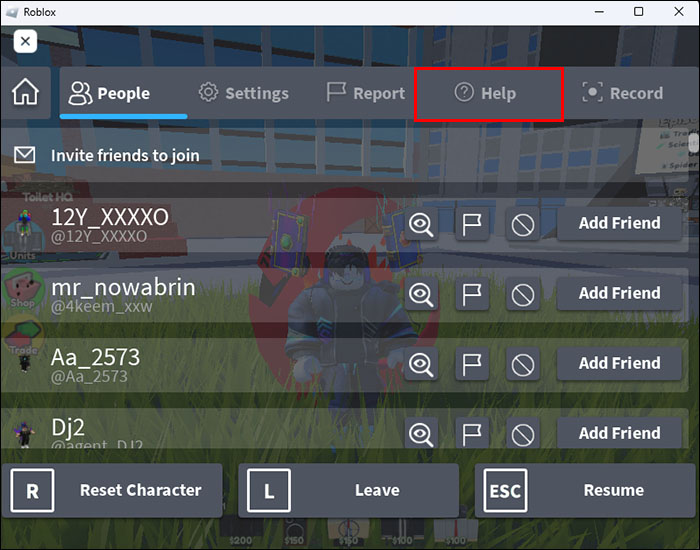
- In-Game Settings Menu: When you press ESC (PC) or the 'View'/'Options' button (console), you access the main Roblox menu. Here, you'll find a 'Settings' tab. This usually includes options for camera sensitivity, graphical quality, and sometimes basic input preferences like 'Shift Lock Switch' or 'Invert Y-Axis' for camera control.
- Accessibility Options: Some devices (like your PC's operating system or console's system settings) offer accessibility features that can alter how input devices function. These might include sticky keys, filtered keys, or alternative input methods, which could indirectly affect Roblox UI navigation.
- Game-Specific Customization: Many individual Roblox experiences offer their own in-game settings. Developers might include options to scale UI elements, reposition HUD components, or even change keybinds for their specific game's mechanics. Always check the game's settings menu (often a gear icon or 'Settings' button within the game itself) for these options.
- Third-Party Tools (Use with Caution): While not officially supported, some advanced users might employ third-party remapping software for controllers or keyboards. However, using such tools can sometimes violate Roblox's Terms of Service if they provide an unfair advantage, so proceed with extreme caution and at your own risk.
For most players, the default UI navigation is designed to be functional. Focus on making sure your core input devices are working optimally and check within specific games for any UI tweaks offered by the developers.
Are There Any Advanced Tips for Optimizing Roblox UI for Adult Gamers?
Absolutely! For us busy adult gamers who want to make the most of our limited play time, here are some advanced tips to optimize your Roblox UI experience:
- Learn Keybinds & Shortcuts: Many games within Roblox, and Roblox itself, have hidden or less obvious keyboard shortcuts. For example, ' / ' to open chat quickly. Memorizing these can significantly speed up interactions. Look for tutorials or developer notes within popular games you frequent.
- Adjust Graphics Settings: While not direct UI navigation, optimizing your graphics settings (found in the main Roblox menu under 'Settings' > 'Graphics Mode') can reduce lag, which in turn makes UI elements feel more responsive. Lowering graphics quality can be a boon on older hardware or for smoother performance, especially when balancing gaming with other resource-intensive tasks on your PC.
- Utilize Shift Lock (PC): For PC players, 'Shift Lock' (usually activated by pressing Shift) locks your camera direction relative to your character's movement. This can be incredibly useful in certain games for precise character control, allowing your mouse to focus solely on UI interaction when needed, without accidentally turning your character.
- Consider a Gaming Mouse/Controller: If you're serious about your Roblox time, investing in a good quality gaming mouse with programmable buttons or a responsive gaming controller can make a huge difference. Macros can sometimes be programmed (again, be mindful of Roblox's TOS) to execute complex actions with a single click, speeding up repetitive UI tasks.
- Mobile Accessibility Settings: On mobile, explore your device's accessibility settings. Features like 'Assistive Touch' on iOS or 'Accessibility Shortcut' on Android can sometimes be configured to provide quick access to common functions or even simulate gestures, enhancing your interaction with the Roblox UI.
- Join Community Forums: The Roblox developer and player community is vast. Check out forums or Discord servers for your favorite games. Often, experienced players share their own UI tips, custom configurations, or workarounds for common issues. This social aspect of gaming is something many adult gamers cherish, offering practical advice and connection.
Remember, the goal is efficiency and enjoyment. Every little optimization helps when you're trying to squeeze maximum fun out of your gaming sessions.
So, there you have it! Navigating the Roblox UI doesn't have to be a headache. By understanding how it works across different platforms, knowing how to troubleshoot common issues, and leveraging a few optimization tricks, you can ensure your gaming sessions are smooth, fun, and exactly what you need after a busy day. Whether you're a builder, an adventurer, or just there to chat with friends, a seamless UI experience lets you dive deeper into the vast and vibrant worlds Roblox has to offer. We hope this guide helps you spend less time fumbling and more time enjoying!
What's your biggest Roblox UI navigation challenge? Comment below and let's help each other out!
FAQ Section
How do I make my Roblox UI bigger or smaller?
In most Roblox experiences, you can adjust UI scaling within the game's specific settings menu. If a game doesn't offer this, some PC users adjust their display's resolution or scaling settings, but this affects your entire desktop. Mobile devices often have system-wide display size options that can impact Roblox UI.
Why does my mouse cursor disappear in Roblox?
Your mouse cursor might disappear because you're in a game that prioritizes character control (first-person mode) or it's temporarily hidden. Pressing the ESC key to open the Roblox menu usually brings it back. Moving your mouse vigorously can also sometimes reactivate it. If it persists, restart Roblox.
Can I play Roblox with a keyboard and mouse on Xbox?
Yes, Xbox consoles support keyboard and mouse input for some games, and Roblox is one of them. You can simply plug in a USB keyboard and mouse, and they should function for character movement and UI navigation, similar to how they work on a PC.
How do I open the chat in Roblox?
On PC, press the ' / ' (forward slash) key to quickly open the chat window. On console, a specific button (often the D-pad Up or 'View' button, depending on the game) might toggle chat. On mobile, look for a speech bubble icon to open the chat interface.
What is 'Shift Lock' and how does it help with UI?
'Shift Lock' is a PC-specific feature in Roblox (activated by pressing the Shift key) that locks your camera behind your character, similar to third-person shooters. It's useful because it decouples your camera from your mouse movements, allowing your mouse to freely interact with UI elements without rotating your character accidentally, providing more precise control.
Why are some Roblox game UIs hard to use on mobile?
Some older or less optimized Roblox games may have UIs designed primarily for PC screens, making them difficult to interact with on smaller mobile touchscreens. Developers are increasingly designing for mobile-first, but you might still encounter experiences with less touch-friendly interfaces. Sometimes, zooming in can help.
Effortless Roblox UI navigation on all devices, quick setup guide for console and PC, troubleshooting common navigation issues, optimizing your gameplay experience, understanding different UI modes, saving time on menu interactions.
35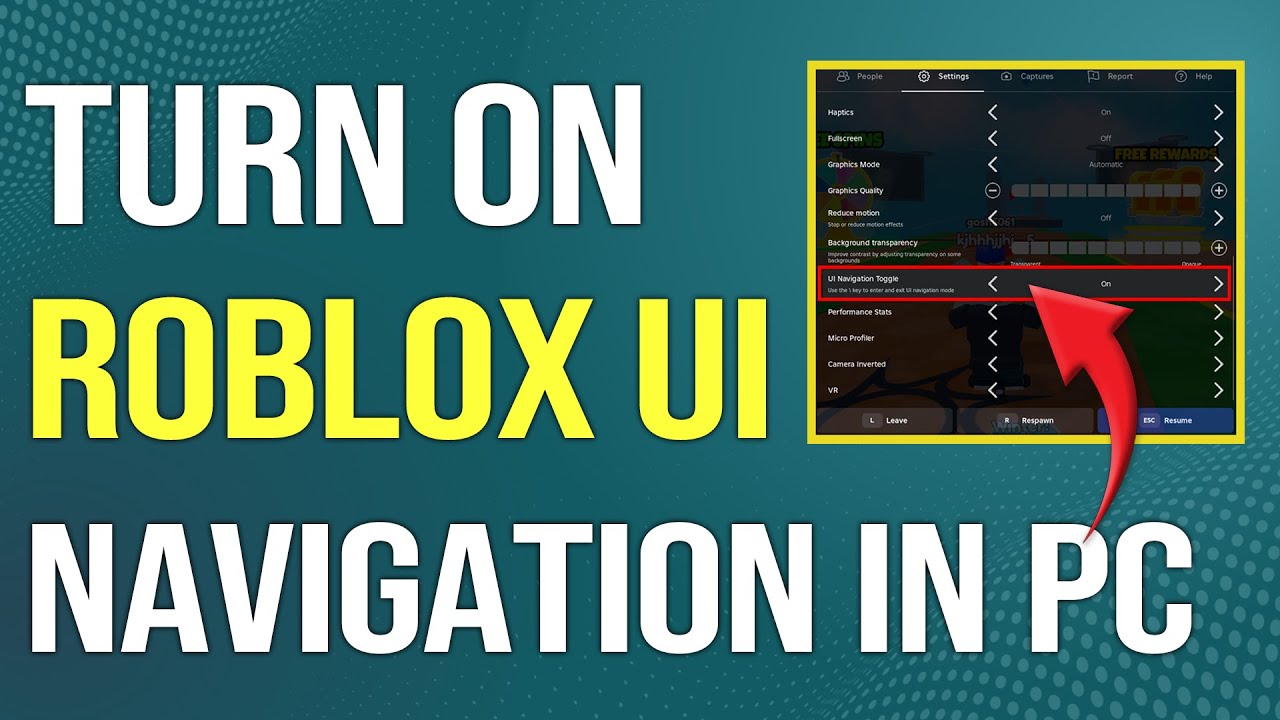


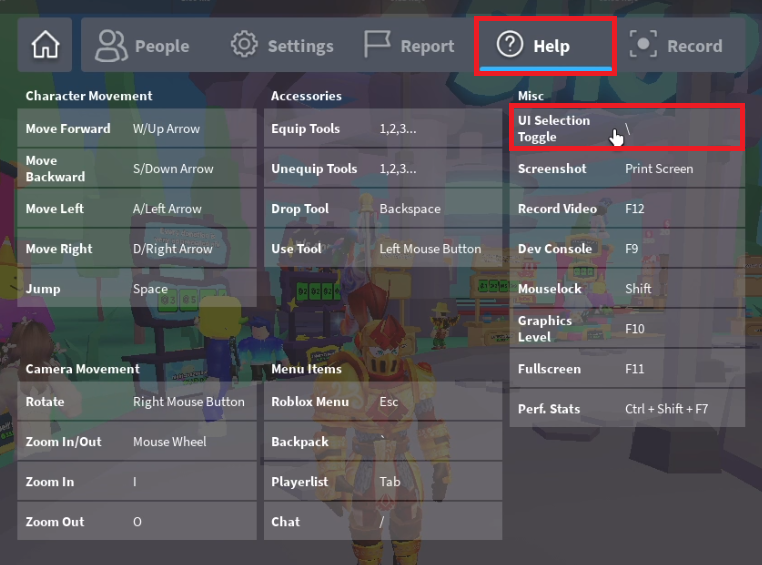
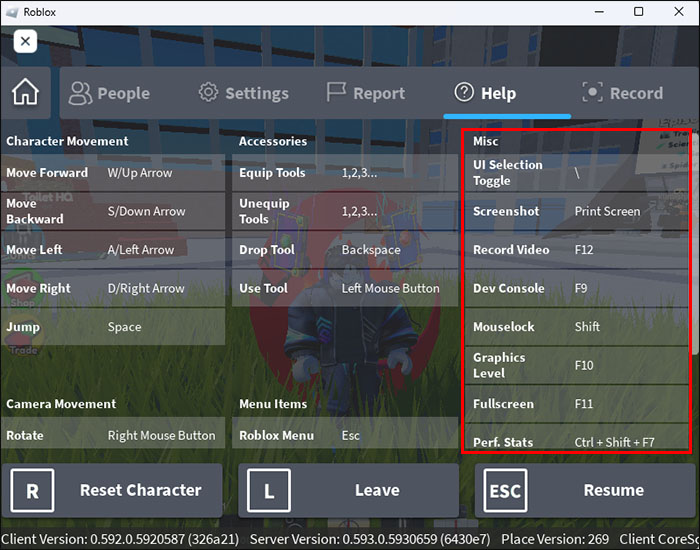
How To Enable UI Navigation Roblox Your Essential Guide . How To Enable UI Navigation Roblox Your Essential Guide . How To Fix Navigation Issues On Roblox UI Navigation Setting YouTube . How To Enable UI Navigation Roblox Your Essential Guide 1 Roblox Settings. How To Disable UI Navigation In Roblox Roblox How To Disable UI Navigation 2


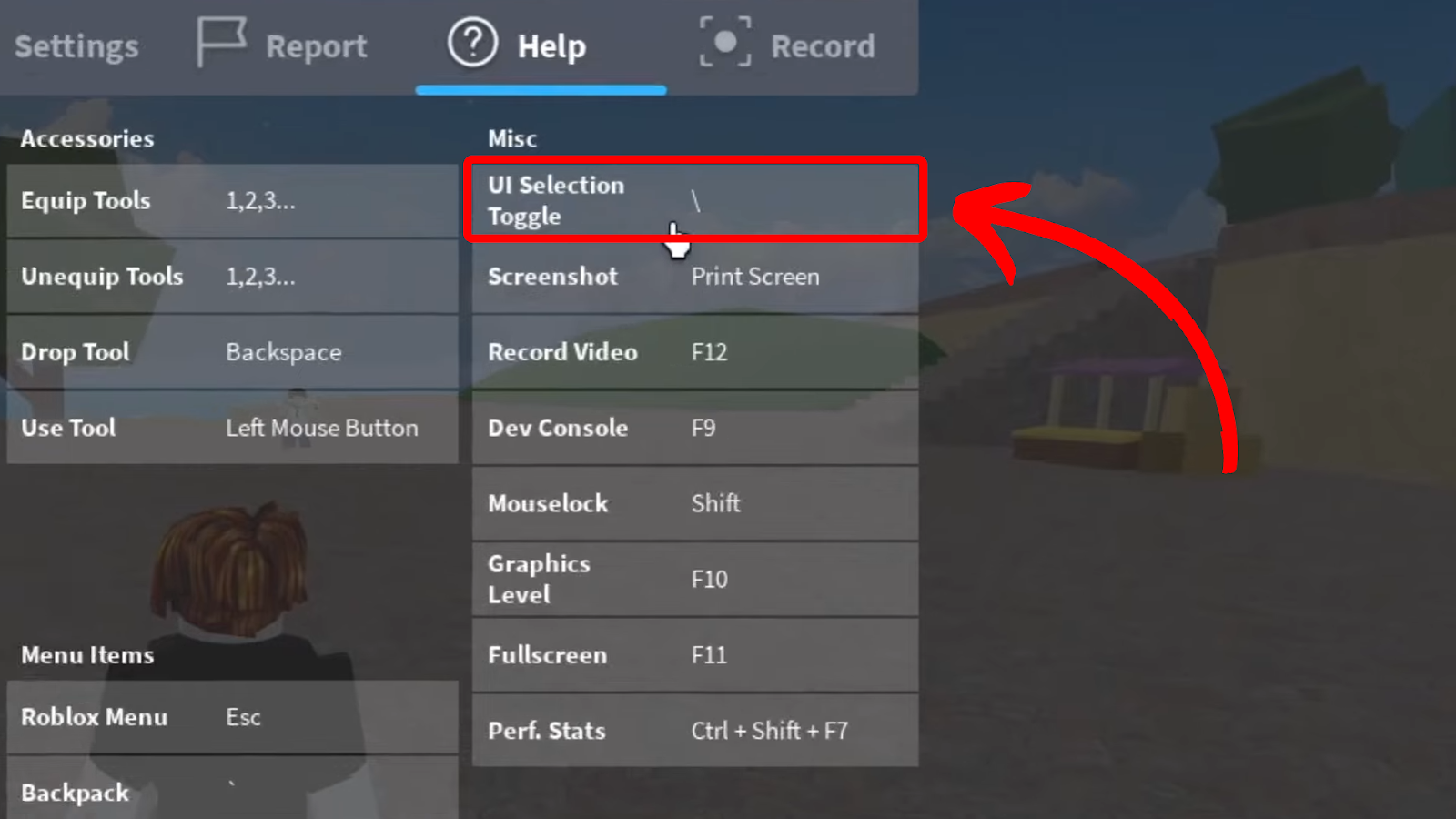
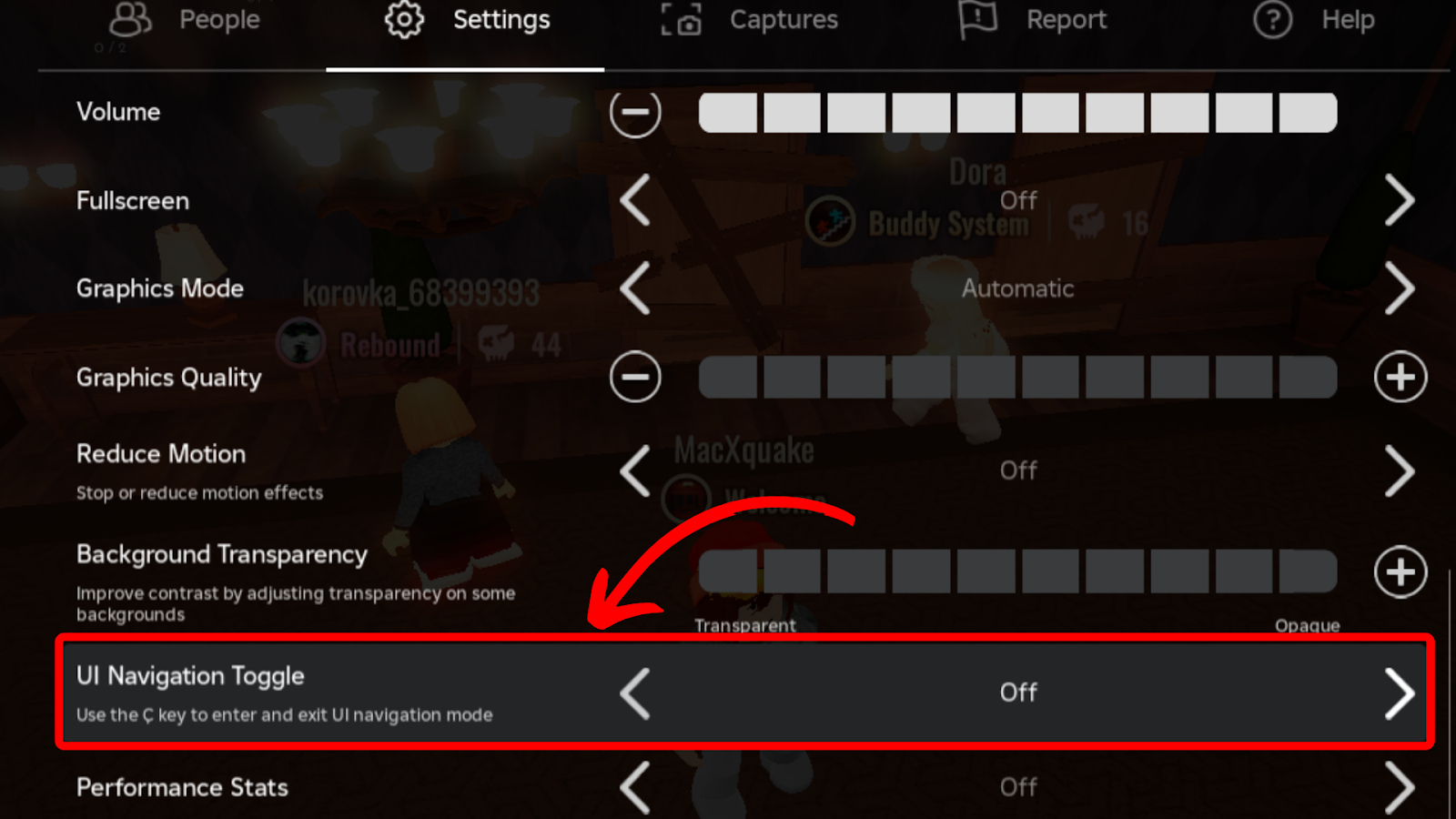
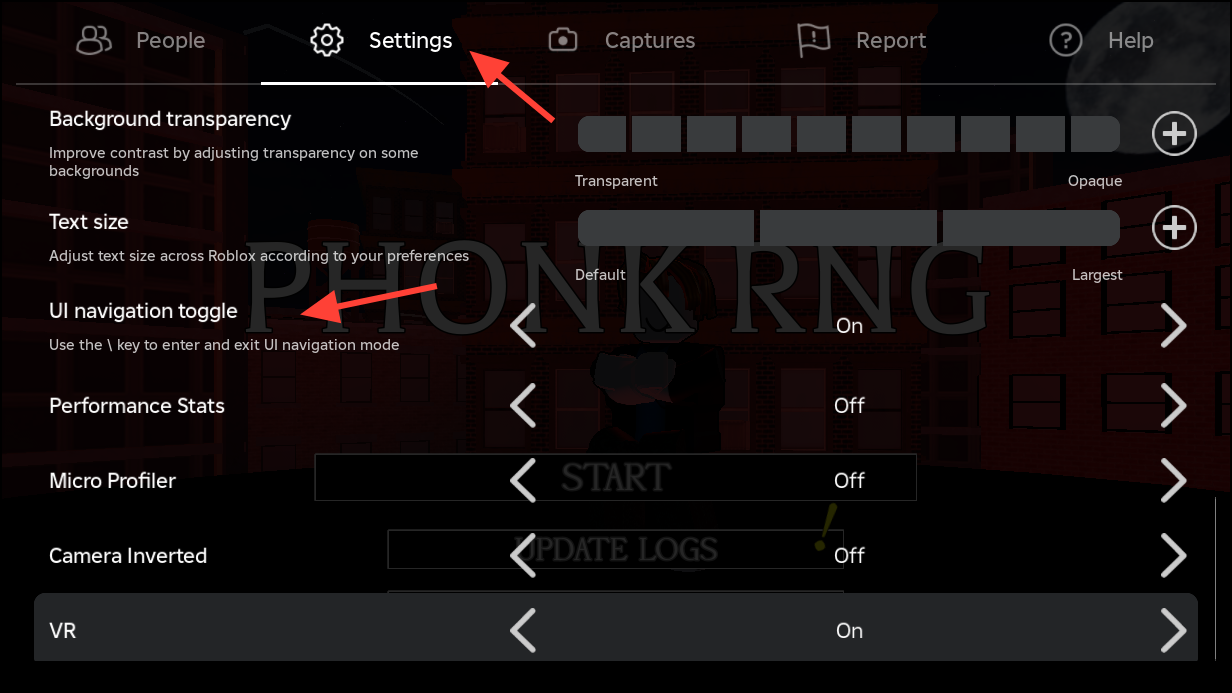
How To Turn Off UI Navigation In Roblox A Step By Step Guide YouTube . How To Turn Off UI Navigation Roblox YouTube . Stop The UI Turning Off Navigation In Roblox Ui Navigation Selection Toggle Settings . How To Turn Off UI Navigation In Roblox 3 Ways Fix Alvaro Trigo S Disable Ui Navigation Robloxbralt Disable UI Navigation Roblox . Turn Off UI Navigation In Roblox PC Permanent And Quick Fixes Image 1576 1
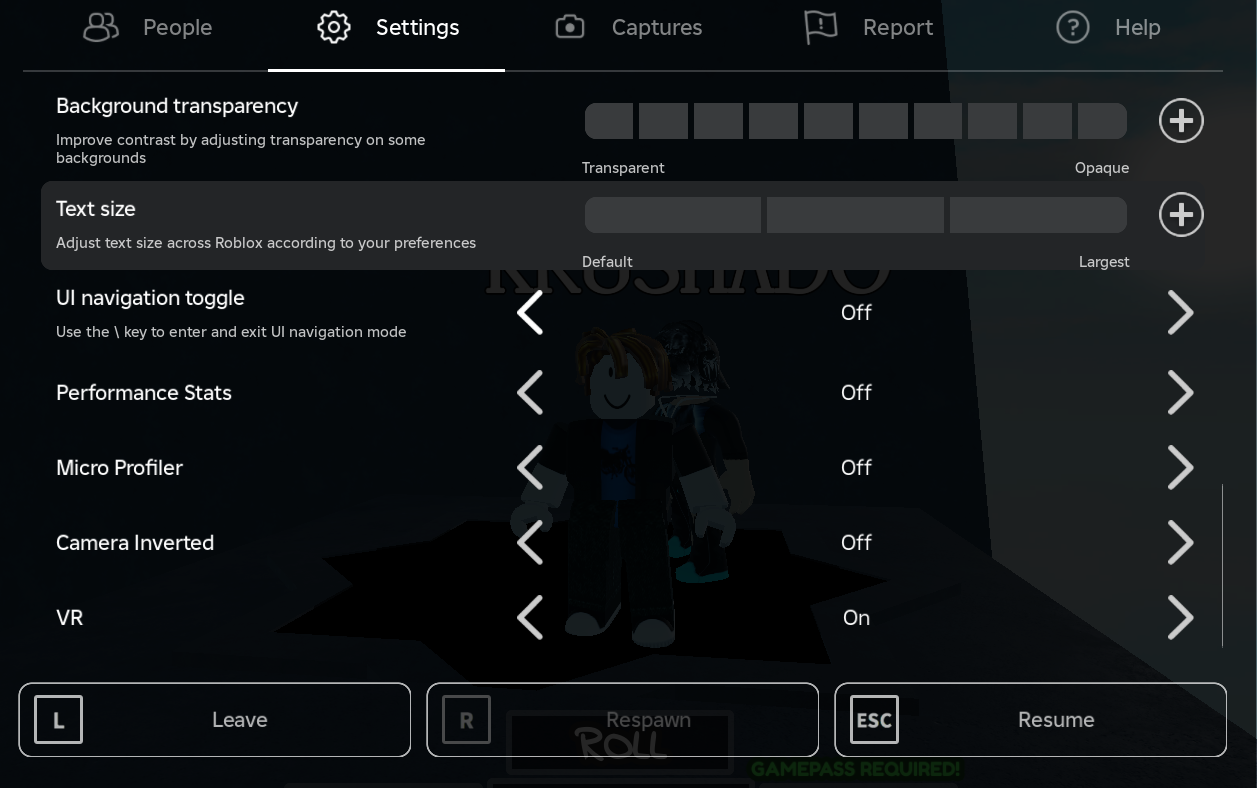


Turn Off UI Navigation In Roblox PC Permanent And Quick Fixes Screenshot 2025 09 17 115343 . How To Toggle UI Navigation And Get Moving Again On Roblox The Nerd Stash Roblox UI Navigation Menu 300x169 . Stop The UI Turning Off Navigation In Roblox . How To Enable UI Navigation Roblox Your Essential Guide . How To Disable Roblox UI Navigation YouTube

How To Turn Off Ui Navigation Roblox 2024 Simple Tutorial YouTube . How To Disable UI Navigation In Roblox Roblox How To Disable UI Navigation 1 . How To Turn Off Roblox UI Navigation In 5 Easy Steps Image. How To Disable Roblox UI Navigation Quick Easy YouTube . Stop The UI Turning Off Navigation In Roblox How Turn Off Ui Navigation Roblox




How To Disable Roblox UI Navigation Quick And Easy Tutorial YouTube . How To Activate UI Navigation On Roblox YouTube . How To Turn Off UI Navigation In Roblox 3 Ways Fix Alvaro Trigo S Image 1024x684 . Stop The UI Turning Off Navigation In Roblox . How To Turn Off UI Navigation In Roblox YouTube




How To Turn Off Roblox UI Navigation How To Disable Roblox UI . How To Disable Roblox UI Navigation Full Guide YouTube . How To Turn Off UI Navigation On Roblox A Step By Step Guide How To Turn Off Ui Navigation Roblox 711x400 . How To Turn Off Ui Navigation Roblox Pc Full Guide YouTube . How To Enable UI Navigation Roblox Your Essential Guide How To Turn Of Ui Navigation Roblox


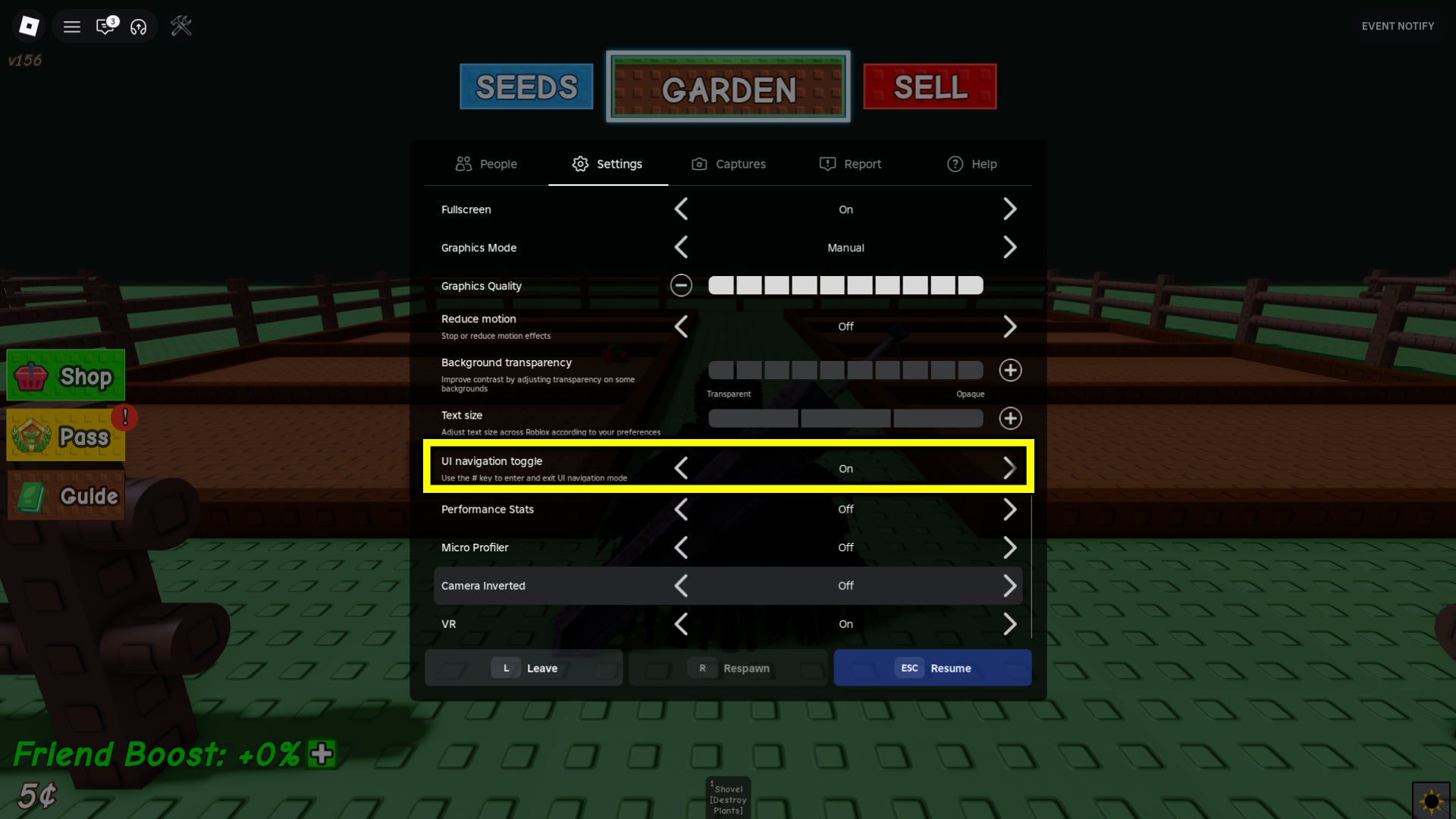
How To Disable UI Navigation In Roblox Fix Can T Move Glitch Roblox . How To Enable Ui Navigation In Roblox YouTube . How To Disable UI Navigation In Roblox Roblox How To Disable UI Navigation . How To Turn Off UI Navigation Toggle On Roblox 2025 YouTube . How To Turn Off UI Navigation In Roblox Rock Paper Shotgun Roblox Disable Ui Navigation