Understanding how to check PC temps while gaming is paramount for any serious or casual gamer in 2026. With titles becoming more graphically demanding and game sessions stretching longer, preventing overheating is crucial for maintaining optimal performance and extending hardware lifespan. Many busy gamers, balancing work and family, often overlook this simple yet vital aspect of PC maintenance. This comprehensive guide provides easy-to-follow steps and practical advice on how to effectively monitor your CPU and GPU temperatures, ensuring your gaming rig runs smoothly without unexpected frame drops or system crashes. Discover free software solutions, understand ideal temperature ranges, and learn quick tips to keep your system cool, allowing you to focus on dominating your favorite games and enjoying your limited gaming time to the fullest. Dont let overheating ruin your hard earned leisure. This article is tailored for the average gamer aged around 36 who seeks reliable information without the hype to optimize their setup efficiently.
Q: How do I get an in-game overlay to see my PC temps while gaming?
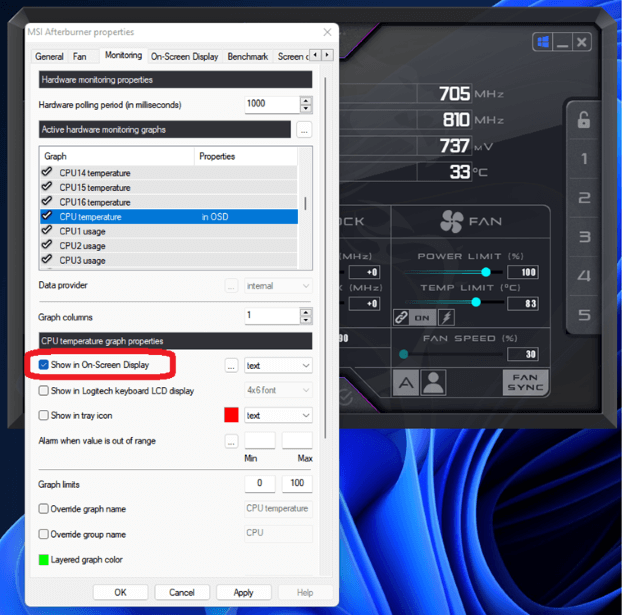
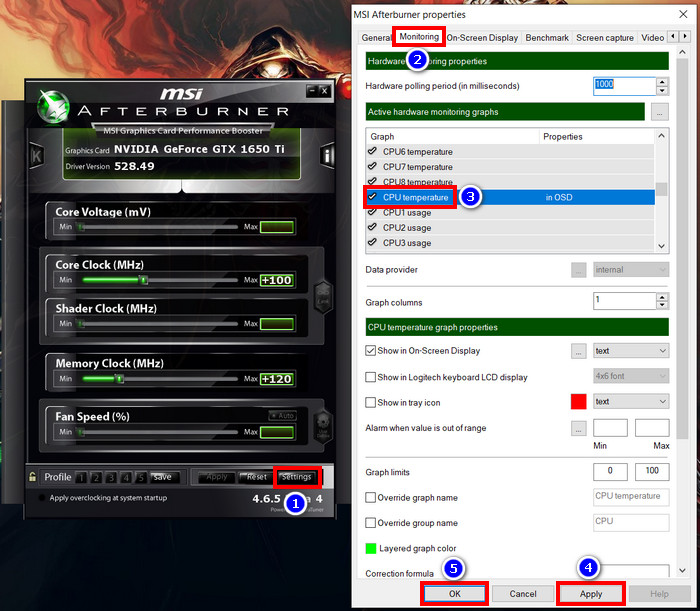
A: The most popular and effective way to get an in-game overlay for PC temperatures is by using MSI Afterburner combined with RivaTuner Statistics Server (RTSS). Install both programs, then within MSI Afterburner's settings, go to the Monitoring tab, select the metrics you want to display (like GPU temperature, CPU temperature, and framerate), and enable "Show in On-Screen Display." RTSS will then render these statistics directly into your games, offering real-time feedback on your system's performance and thermal status without needing to alt-tab.
Q: What's the easiest free way to check my CPU and GPU temperatures without installing much?
A: The easiest free way to check both CPU and GPU temperatures without heavy installation is using HWMonitor by CPUID. It's a lightweight, portable utility that doesn't require complex setup. Simply download the ZIP file, extract it, and run the executable. It immediately presents a clear, organized view of all your system's sensor data, including current, minimum, and maximum temperatures for your CPU cores, GPU, and even hard drives, making it incredibly convenient for a quick diagnostic check.
Q: My PC fans are really loud during gaming. Is that a sign of high temps?
A: Yes, extremely loud PC fans during gaming are often a strong indicator of elevated temperatures. When your CPU or GPU gets hot, the system's fan control automatically increases fan speeds to try and dissipate more heat. While some fan noise is normal under load, if your fans suddenly become significantly louder or sound like they're working overtime, it's a clear signal that your components are running hotter than ideal and struggling to stay cool, warranting an immediate temperature check.
Q: Can high PC temperatures cause game stuttering or lag?
A: Absolutely, high PC temperatures are a primary cause of game stuttering and lag. When your CPU or GPU overheats, they initiate a protective mechanism called "thermal throttling." This process automatically reduces the component's clock speed and power consumption to lower temperatures and prevent damage. This reduction in performance directly translates to lower frame rates, inconsistent frame pacing, and noticeable stuttering, severely impacting your gaming experience.
Q: What should my idle PC temperatures be for CPU and GPU?
A: For a healthy gaming PC, idle temperatures should be significantly lower than under load. Typically, an idle CPU should sit between 30-45 degrees Celsius (86-113 F), while an idle GPU should be in the range of 30-50 degrees Celsius (86-122 F). These ranges can vary slightly based on your specific hardware, ambient room temperature, and case airflow, but consistently higher idle temps might suggest poor cooling or background processes.
Q: Is it safe to play games if my GPU temperature is consistently above 85 C?
A: Consistently playing games with your GPU temperature above 85 degrees Celsius (185 F) is generally not recommended and can be unsafe for the long-term health of your graphics card. While many modern GPUs can tolerate brief spikes to this temperature, prolonged exposure to such high heat can accelerate the degradation of components, reduce the card's lifespan, and potentially lead to instability, crashes, or artifacting in your games. It's advisable to improve your cooling if temps regularly reach this level.
Q: How often should I clean my PC to help with temperature control?
A: To effectively maintain good temperature control, you should aim to clean your PC thoroughly every 3 to 6 months. Dust and debris accumulate over time on heatsinks, fans, and vents, acting as an insulating layer that traps heat and restricts airflow. Regular cleaning with compressed air can significantly improve your PC's cooling efficiency, preventing temperature buildup and ensuring your components run within safe operating ranges during intense gaming sessions.
Are you tired of your gaming PC sputtering during a crucial boss fight or stuttering while you're exploring the latest open-world sensation? You're not alone. Many dedicated gamers, especially those of us balancing a busy life with our passion for digital worlds, often experience these frustrating performance hiccups. It's easy to get caught up in the thrill of the game, but ignoring your PC's health can lead to slowdowns, crashes, and even permanent hardware damage. In fact, with 87% of US gamers regularly dedicating 10+ hours a week to their favorite titles, ensuring your rig runs optimally has never been more important. High temperatures are often the silent killer of gaming performance, turning your smooth experience into a choppy mess. But don't worry – understanding how to check PC temps while gaming is a straightforward process, and this guide will equip you with all the knowledge and tools you need to keep your system cool, efficient, and ready for action. Let's dive in and transform your gaming experience from frustrating to fantastic.
Why is Monitoring PC Temperatures Crucial for Gamers?
Monitoring your PC's temperatures, especially the CPU and GPU, is absolutely vital for gamers. Overheating can lead to a cascade of problems, from noticeable performance drops like frame rate stuttering to system instability and even long-term damage to expensive components. Imagine trying to unwind after a long day with a few rounds of your favorite online multiplayer game, only for your system to lag due to excessive heat. This not only ruins the fun but also impacts your competitive edge. Regularly checking your temperatures helps you catch potential issues early, prevent throttling, and ensure your hardware operates within safe limits, thereby extending its overall lifespan and protecting your investment.
What are the Best Free Software Tools to Check PC Temps While Gaming?
For those looking for reliable, free ways to check PC temps while gaming, several excellent software options stand out. These tools provide real-time data, allowing you to keep a close eye on your CPU and GPU temperatures without costing a dime. Choosing the right one often depends on personal preference and the level of detail you need.
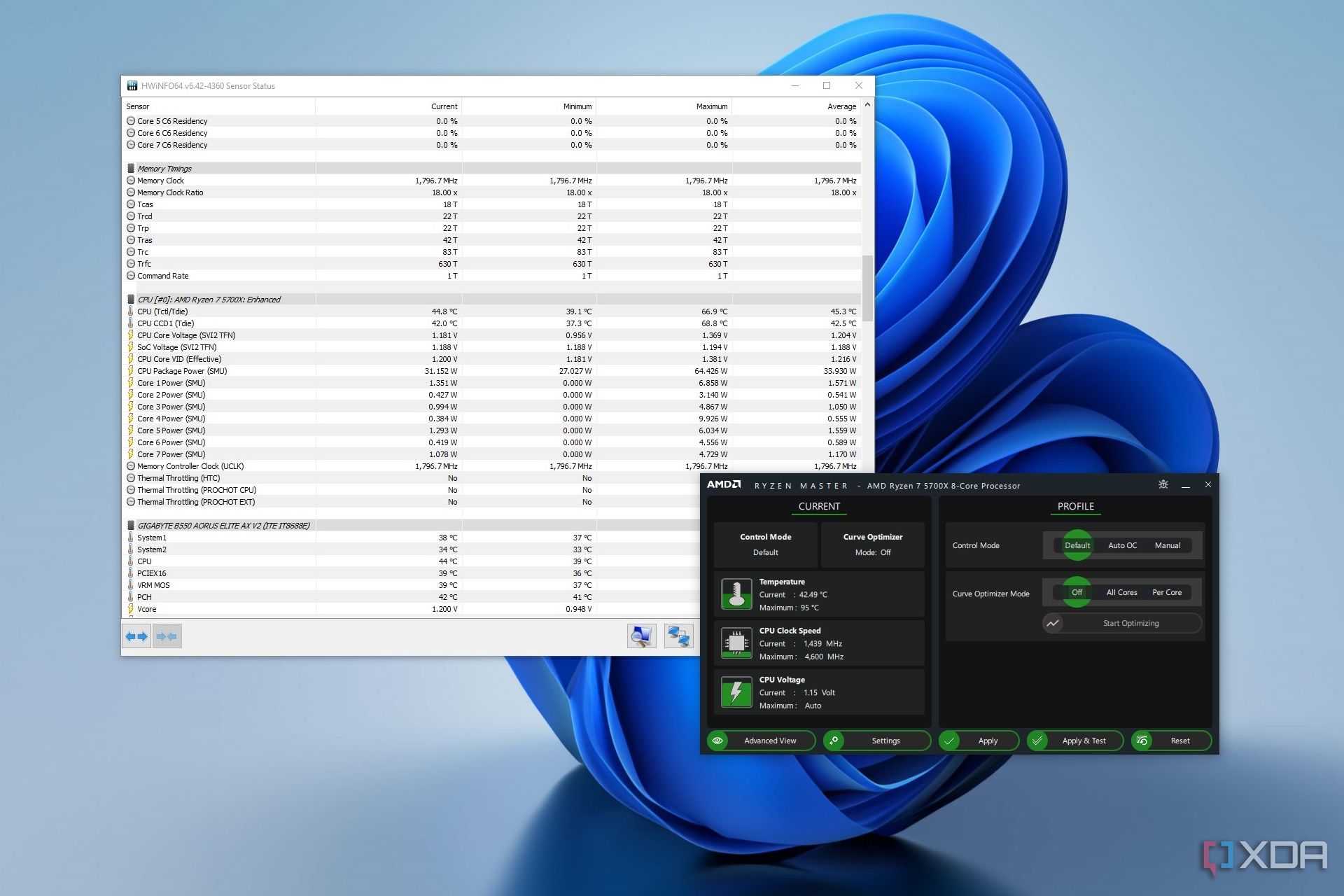
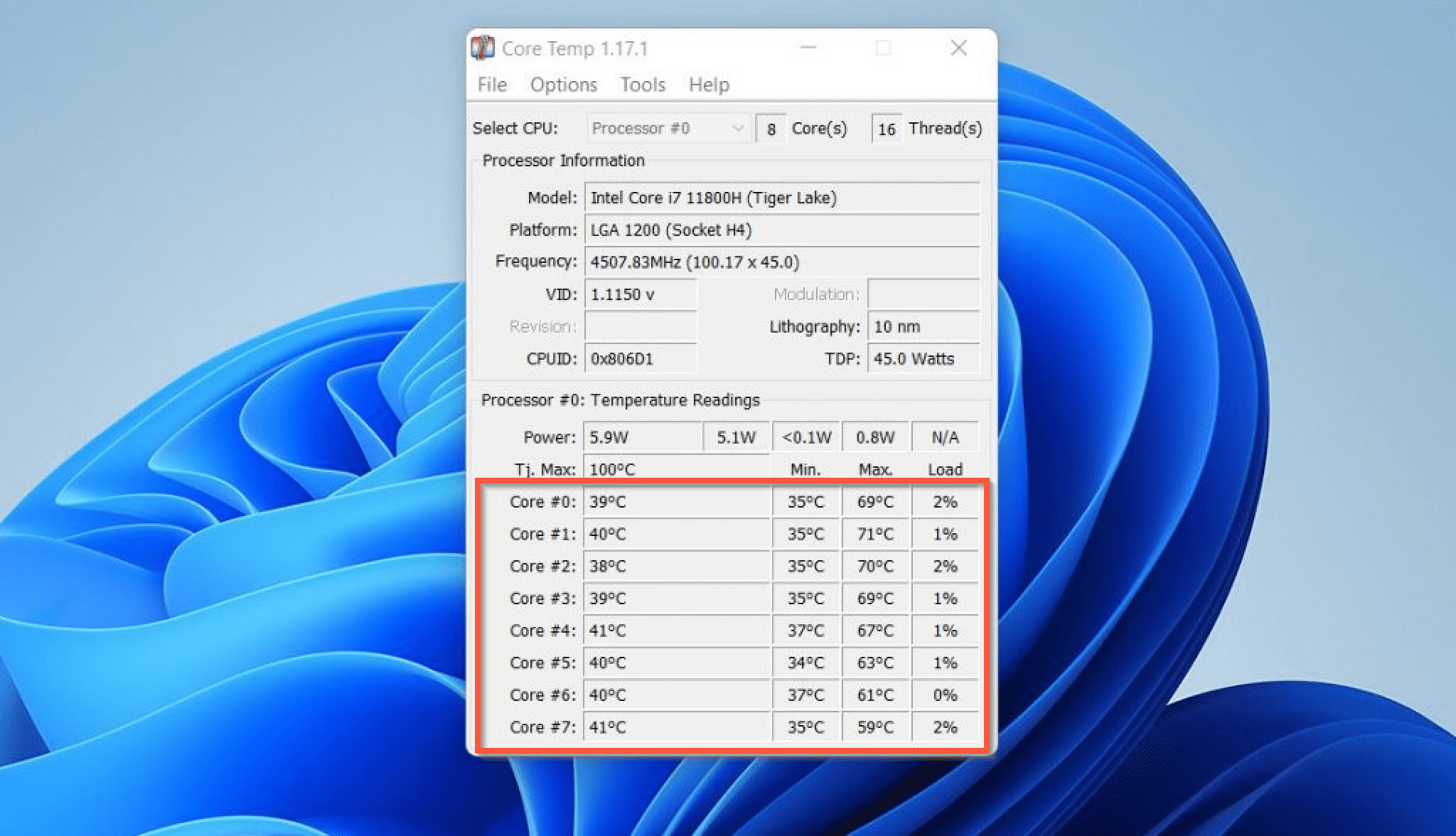
- HWMonitor: This lightweight, user-friendly tool provides a comprehensive overview of your system's sensors, including CPU core temperatures, GPU temperatures, fan speeds, and voltages. It's great for a quick glance.
- Speccy: Developed by CCleaner, Speccy offers a detailed summary of every piece of hardware in your computer, including temperature readings for your CPU, GPU, and even hard drives. It's a fantastic option for a broader system overview.
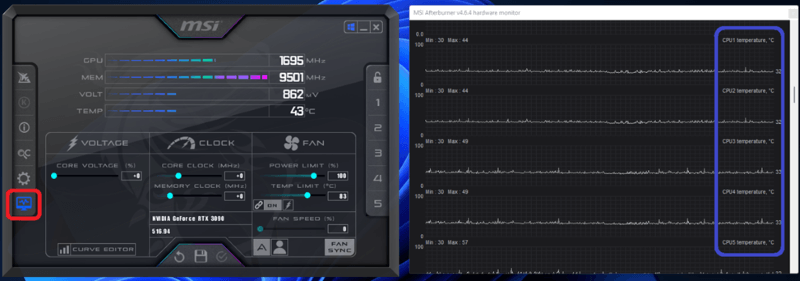
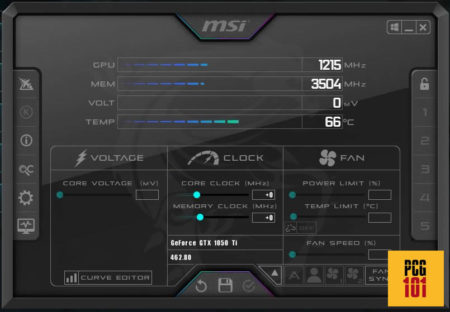
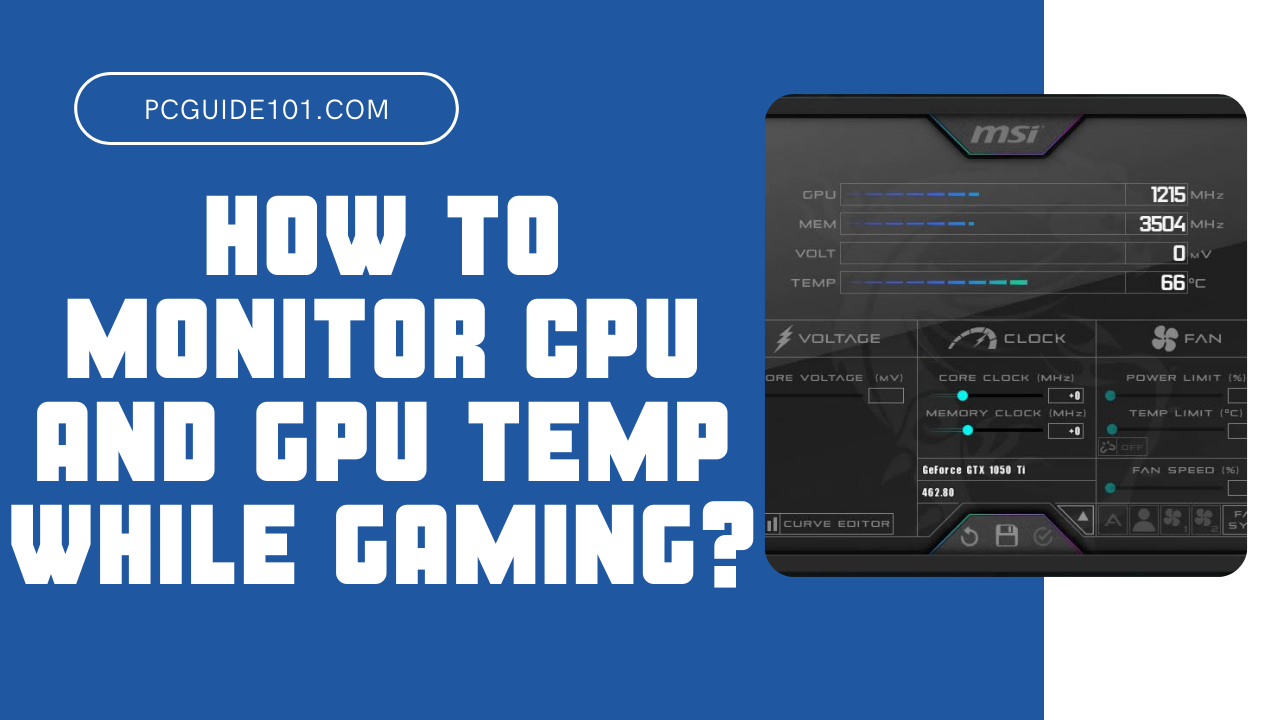
- MSI Afterburner: While primarily known as an overclocking utility for GPUs, MSI Afterburner also boasts a powerful monitoring overlay that can display GPU temperature, usage, clock speeds, and even CPU temperature directly in your game. It's a favorite among performance-focused gamers.
- Open Hardware Monitor: Another open-source option, this tool monitors temperature sensors, fan speeds, voltages, load, and clock speeds of a computer's hardware components. It supports most modern CPUs and GPUs.
Each of these tools offers a distinct advantage, but all effectively provide the crucial temperature data you need. For most gamers, combining a general monitoring tool like HWMonitor with an in-game overlay from MSI Afterburner provides the best balance of detail and convenience.
How Can I Monitor PC Temperatures In-Game?
Monitoring your PC temperatures directly in-game is incredibly convenient, allowing you to see performance metrics without tabbing out. This is especially useful for busy gamers who only have limited time and want to ensure their system is running optimally without interruption. The most popular method involves using software overlays.
- MSI Afterburner with RivaTuner Statistics Server (RTSS): This dynamic duo is the go-to for many. MSI Afterburner monitors your hardware, and RTSS (which usually comes bundled with Afterburner) creates a customizable on-screen display (OSD) in your games. You can configure it to show GPU temperature, CPU temperature, frame rates, usage percentages, and more.
- NVIDIA GeForce Experience Performance Overlay: If you have an NVIDIA GPU, GeForce Experience offers an in-game overlay (Alt+R by default) that can display basic performance stats, including GPU temperature, usage, and frame rates. While not as detailed as Afterburner, it's a quick and easy option for NVIDIA users.
- AMD Radeon Software Performance Overlay: Similarly, AMD GPU users can access a performance overlay through the Radeon Software (Alt+R by default). This provides real-time GPU metrics and, depending on the version, can also show CPU data.
These overlays ensure you're always aware of your system's thermals and performance without breaking immersion, helping you quickly identify if overheating is affecting your gameplay.
What are Normal and Safe CPU Temperatures for Gaming?
Understanding what constitutes a normal CPU temperature while gaming is key to assessing your system's health. For most modern CPUs (like Intel's Core i5/i7/i9 or AMD's Ryzen 5/7/9 series), a safe gaming temperature range typically falls between 50°C to 75°C (122°F to 167°F). Under heavy load from games, it's common for temperatures to rise. Briefly touching 80°C (176°F) during very intense moments might be acceptable, but consistently running above this, especially into the 85°C-90°C (185°F-194°F) range, indicates a potential cooling issue that needs attention. Sustained high temperatures can lead to thermal throttling, where your CPU automatically reduces its clock speed to prevent damage, resulting in noticeable performance degradation and a frustrating gaming experience. Always aim to keep your CPU within the lower end of the "safe" spectrum for optimal longevity and performance.
What are Normal and Safe GPU Temperatures for Gaming?
Just like your CPU, your GPU generates a significant amount of heat while rendering your favorite gaming worlds. For most modern GPUs (from NVIDIA's RTX series to AMD's Radeon RX lineup), a normal and safe temperature range under load during gaming is typically between 60°C to 80°C (140°F to 176°F). High-performance cards can sometimes peak a little higher, occasionally touching 85°C (185°F) without immediate concern, but prolonged periods at or above this level are not ideal. Temperatures consistently exceeding 85°C to 90°C (185°F to 194°F) are a red flag and suggest inadequate cooling or an intensive workload that your current setup struggles with. Sustained high GPU temperatures can lead to artifacting, crashes, and a shortened lifespan for your graphics card, severely impacting your ability to enjoy current and future titles. Keeping your GPU within its optimal thermal range ensures smooth visuals and reliable gameplay.
When Should I Be Concerned About High PC Temperatures During Gaming?
You should start to be concerned about your PC's temperatures while gaming if your CPU consistently hits 85°C (185°F) or higher, or if your GPU regularly reaches 90°C (194°F) or above. These thresholds typically indicate that your cooling solution is struggling to keep up with the heat generated by your components under heavy gaming load. Beyond specific temperature numbers, other warning signs include:
- Frequent frame rate drops and stuttering that weren't present before.
- Your PC's fans spinning at maximum speed constantly, producing a loud, distracting noise.
- Unexpected system crashes or blue screens of death (BSODs) during gaming sessions.
- Noticeable heat emanating from your PC case, especially from the top or back exhaust areas.
- The game itself freezing or becoming unresponsive.
If you observe any of these symptoms alongside high-temperature readings, it's a clear signal that action is needed to prevent potential hardware damage and restore smooth gameplay. Addressing these issues promptly can save you from costly repairs or replacements down the line.
How Do High Temperatures Impact Gaming Performance and Hardware Lifespan?
High temperatures are a gamer's worst enemy, directly impacting both immediate performance and the long-term health of your hardware. When a CPU or GPU gets too hot, it employs a protective mechanism called "thermal throttling." This means the component automatically reduces its clock speed and power consumption to lower temperatures and prevent damage. The immediate effect on your gaming is a noticeable drop in frame rates, stuttering, and overall sluggishness, ruining your immersion and competitive edge. You'll struggle to maintain smooth visuals, especially in graphically demanding titles that many modern gamers enjoy, like popular free-to-play options or competitive esports. Beyond performance, sustained exposure to excessive heat accelerates the degradation of electronic components, shortening their lifespan. This means your expensive CPU and GPU might fail much sooner than expected, leading to unexpected upgrade costs and downtime. Balancing gaming with work and family life already means limited time; you don't want that time wasted troubleshooting hardware issues that could have been prevented with proper thermal management.
What Simple Steps Can I Take to Improve My PC's Cooling?
Improving your PC's cooling doesn't always require a complete overhaul or breaking the bank. Many effective solutions are straightforward and budget-friendly, perfect for gamers looking to optimize their setup without hassle. Here are some actionable steps:
- Clean Your PC Regularly: Dust buildup is the number one enemy of cooling. Use compressed air to clean out dust from your CPU cooler, GPU heatsink, case fans, and power supply every 3-6 months. Pay special attention to air intakes and exhaust vents.
- Ensure Proper Airflow: Make sure your PC case has a good balance of intake and exhaust fans. Intake fans bring cool air in, while exhaust fans push hot air out. Orienting them correctly creates a positive or neutral pressure system, preventing hot air pockets.
- Optimize Case Fan Configuration: Experiment with your fan speeds. Many motherboards and software tools allow you to create custom fan curves, increasing fan speed as temperatures rise.
- Improve Room Ambient Temperature: A cooler room means cooler PC components. Ensure your gaming space is well-ventilated, and consider using a fan or air conditioning during long gaming sessions.
- Reapply Thermal Paste: If your CPU cooler is a few years old, the thermal paste between the CPU and heatsink might have dried out. Replacing it with fresh, high-quality thermal paste can significantly improve heat transfer. This is a bit more advanced but highly effective.
- Consider a Better CPU Cooler: If you're still hitting high temps with your stock cooler, especially with a powerful CPU, upgrading to an aftermarket air cooler or an all-in-one (AIO) liquid cooler can make a huge difference.
- Cable Management: Untidy cables inside your case can obstruct airflow. Tidy them up using zip ties or Velcro straps to allow air to move freely around components.
Implementing even a few of these tips can dramatically lower your PC's temperatures, leading to a more stable, higher-performing, and quieter gaming experience.
Are There Any Built-in Ways to Check PC Temps Without Extra Software?
While dedicated software provides the most comprehensive and real-time data, there are a few built-in ways to get a general idea of your PC's temperatures, though they are often less precise or real-time. For a quick check without installing anything, these methods can be useful, especially if you're troubleshooting a critical issue.
- BIOS/UEFI: Most modern motherboards have a temperature monitoring section in their BIOS or UEFI settings. You can access this by restarting your PC and pressing a specific key (usually Del, F2, F10, or F12) during startup. This will show your CPU temperature and sometimes motherboard temperatures. However, these readings are usually for idle states, not under gaming load.
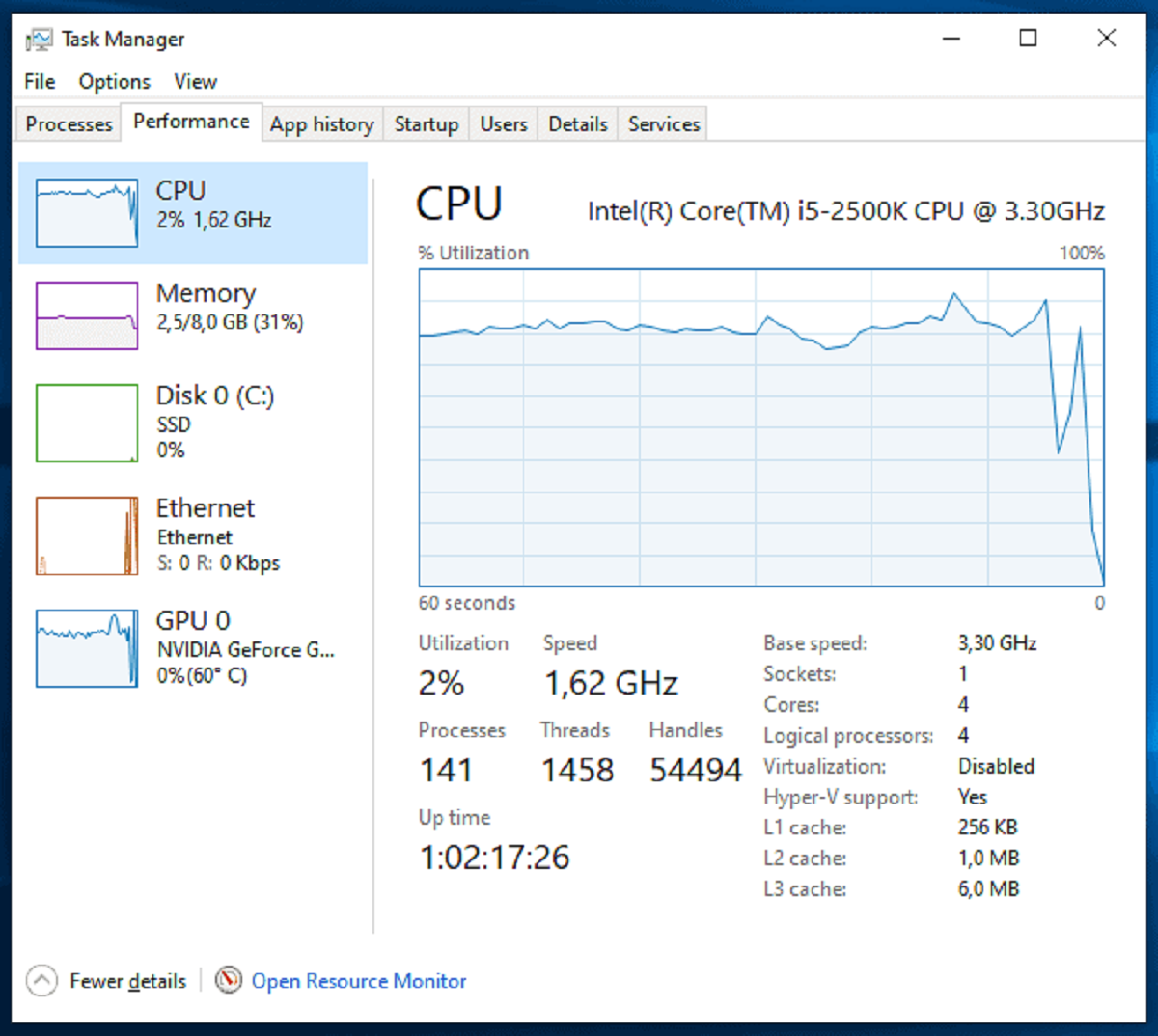
- Windows Task Manager (Limited): The Windows Task Manager (Ctrl+Shift+Esc) can show GPU temperature on the Performance tab for some newer Windows 10/11 versions. This is a recent addition and primarily focuses on the GPU. CPU temperatures are not typically displayed here.
- Physical Check (Caution!): While not precise, you can sometimes feel the exhaust air coming from your PC. If it's extremely hot, it's a clear indicator that your internal components are running at elevated temperatures. However, this doesn't give you specific component readings.
For accurate, real-time monitoring during gaming, especially for both CPU and GPU, third-party software remains the gold standard. However, the BIOS check can be a good starting point if you suspect an issue right after startup.
How Often Should I Check My PC's Temperatures?
For the average gamer who balances life and gaming, you don't need to obsessively check your PC temperatures every single time you game. However, a sensible routine can save you headaches. It's highly recommended to:
- Initially: When setting up a new PC or after installing new hardware (like a CPU cooler or GPU), check temperatures during your first few intense gaming sessions. This helps establish a baseline.
- Monthly/Bi-monthly: A quick check once or twice a month during a typical gaming session is a good preventative measure. This helps identify any creeping issues before they become serious.
- After Cleaning/Maintenance: Always check temps after cleaning dust, reapplying thermal paste, or making any changes to your cooling setup, to ensure everything is working as expected.
- When Troubleshooting: If you notice any performance drops, stuttering, unexpected shutdowns, or unusually loud fans, checking temperatures should be one of your first troubleshooting steps.
- Before/During Long Sessions: If you plan a marathon gaming session (especially important for the 10+ hours/week gamers), a quick glance at your temps before starting and occasionally during the session can provide peace of mind.
For most, integrating an in-game overlay (like MSI Afterburner's) provides a subtle, continuous check without needing dedicated time, allowing you to stay on top of your system's health while enjoying your favorite games.
Conclusion
Keeping an eye on your PC's temperatures while gaming isn't just for tech enthusiasts; it's a fundamental practice for any gamer who wants to enjoy a stable, high-performance, and long-lasting rig. From preventing frustrating frame drops to safeguarding your valuable hardware, understanding and managing your CPU and GPU temperatures is an essential skill. We've explored reliable free software, in-game monitoring options, safe temperature ranges, and practical steps to enhance your system's cooling. By implementing these tips, you're not just optimizing your PC; you're preserving your precious gaming time and ensuring every session is as immersive and fun as possible. Don't let overheating be the reason you step away from your favorite virtual worlds. Take control of your temps today!
What's your biggest gaming challenge when it comes to PC performance? Comment below!
FAQ Section
What is thermal throttling in gaming PCs?
Thermal throttling is when your CPU or GPU automatically reduces its clock speed and performance to lower its temperature and prevent damage when it gets too hot. This causes noticeable frame rate drops and stuttering in games.
Can I check PC temps on my phone?
While not a direct PC check, some advanced monitoring software like NZXT CAM or ASUS AI Suite offer mobile apps that can display your PC's temperature data remotely, provided the desktop software is running.
Does having a lot of dust in my PC increase temperatures?
Absolutely. Dust acts as an insulating layer, trapping heat inside your components and preventing effective airflow, which significantly raises internal temperatures and reduces cooling efficiency.
Is 90 degrees Celsius too hot for a GPU while gaming?
Yes, 90 degrees Celsius is generally too hot for a GPU during gaming. While some cards can briefly tolerate it, sustained temperatures at this level indicate inadequate cooling and can lead to performance issues and a shortened hardware lifespan.
How does room temperature affect my PC's gaming temps?
Room temperature directly impacts your PC's ability to cool itself. A cooler ambient room temperature means your fans have cooler air to draw in, making it easier to dissipate heat from your components and keep internal temps lower.
Do I need to check my hard drive temperatures too?
While CPU and GPU temps are most critical for gaming performance, monitoring hard drive (HDD/SSD) temperatures is also good practice, especially for longevity. Tools like HWMonitor will often show these readings, typically aiming for below 50°C (122°F).
Simple PC temperature monitoring methods, Essential software for checking temps, Prevent gaming performance drops, Extend CPU and GPU lifespan, Understand safe temperature ranges, Quick cooling tips for gamers
35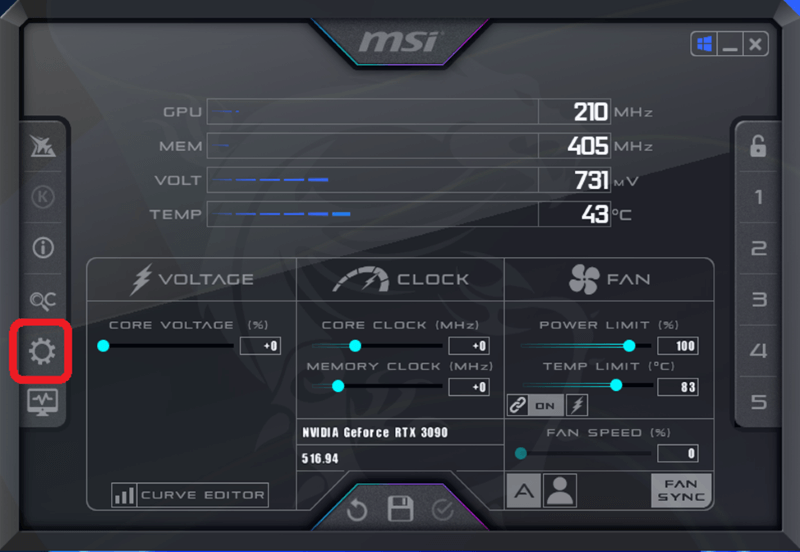

How To Check CPU Temperature While Gaming 4 Steps Check CPU Temperature While Gaming1 1 . 3 Ways To Monitor CPU Temperature WikiHow Aid1468593 V4 728px Monitor CPU Temperature Step 6 Version 3 . Good GPU Temp While Gaming Optimal Temperature For Games Hone Blog Hone.gg Preview Image . How To Check CPU Temperature While Gaming 4 Steps Check CPU Temperature While Gaming5 . Everything About HOW TO SEE CPU AND GPU TEMP WHILE GAMING Core Performance Monitor Cpu And Gpu In

How To Check Cpu Temp While Gaming Windows 11 Desktop With Hwinfo64 And Ryzen Master . How To See CPU Temp On Windows 10 How To Check Cpu Temp In Task Manager . How To Monitor CPU And GPU While Gaming YouTube . How To Monitor CPU Temperature While Gaming Guide 2024 Msi Afterburner Check Cpu Temperature While Gaming . How To Check CPU Temperature While Gaming 4 Steps Check CPU Temperature While Gaming6



7 Best CPU Temp Monitor Software Hardware 2026 Tested B0CNGSPS1N Customer 1 768x451 . How To Measure CPU GPU Temperature And FPS While Playing Games In . How To Display FPS CPU GPU USAGE While Gaming MSI . How To Monitor CPU And GPU Temp While Gaming PC Guide 101 MSI Afterburner 450x312 . How To Check Cpu Temp While Gaming

How To Check Cpu And GPU Temp Robots Net How To Check Cpu Temp In Task Manager 1690363693 . How To Check CPU Temperature While Gaming 4 Steps Check CPU Temperature While Gaming3 . How To Monitor CPU Temp While Gaming Robots Net How To Monitor Cpu Temperature 1698889523 . How To Check CPU And Gpu Temp Robots Net How To Monitor Cpu Temp While Gaming 1690359635 . 7 Best CPU Temperature Monitoring Tools In 2024 Open

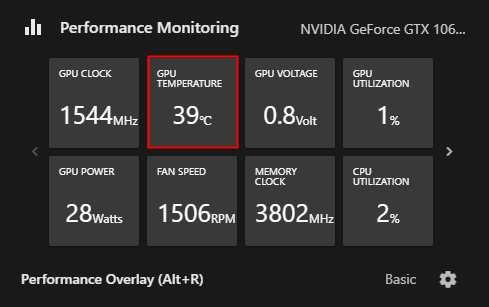
How To Check CPU Temp Windows 7 Robots Net How To Check Cpu Temp On Windows 11 1690363814 . How To Check Your GPU Temperature 3 Simple Methods PC Guide HWINFO GPU Information . How To Check CPU Temp And Manage Heat For Peak Gaming Performance Eneba Header How To Check Cpu Temp 1 1024x575 . How To Monitor CPU Temp While Gaming Checking System Temp LehOc 600x308 . How To Monitor Your Computer S GPU Temperature NVidia Gpu Temp
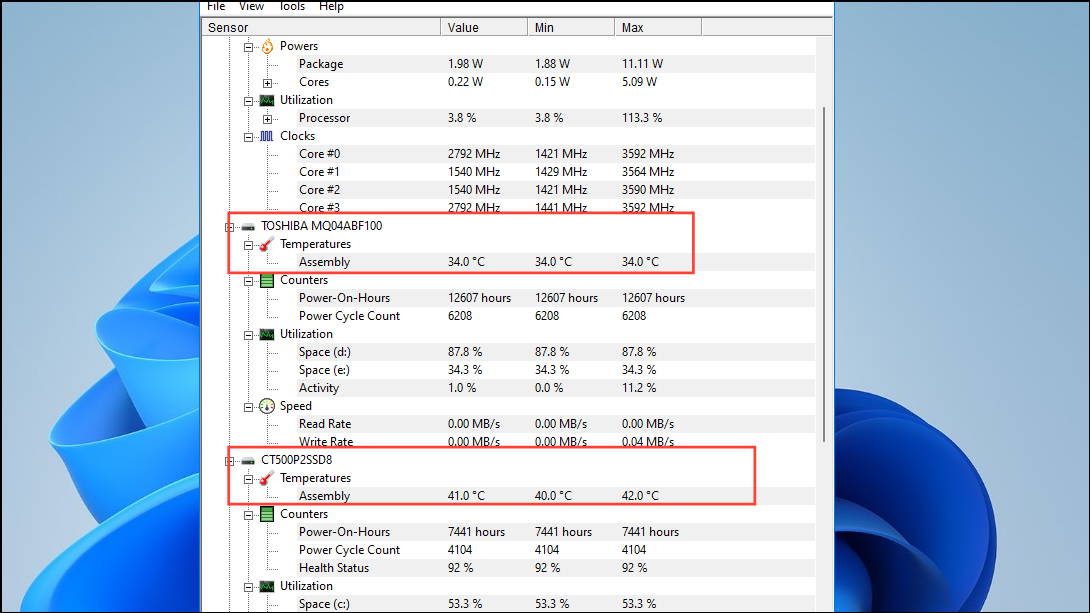

How To Check SSD Temperature On Windows 11 Image 317 1 1 . How To Check CPU Temperature While Gaming 4 Steps Check CPU Temperature While Gaming2 . The Ultimate Gaming PC Build 2026 Guide By Xidax 1 Unnamed . How To Check CPU Temp While Gaming Best Tools And Methods How To Check Cpu Temp While Gaming . How To Check CPU Temp While Gaming Best Tools And Methods Desk Arranged With Gaming Equipment 1200x800
How To Check Your PC S CPU Temperature Tom S Guide . CPU Temperature While Gaming Extensive Guide Tech4Gamers CPU TEMP WHILE GAMING 1068x580 . How To Check Cpu Temp While Gaming 52675662149 Dd10c0c7a4 O . How To Monitor CPU And GPU Temp While Gaming PC Guide 101 How To Check GPU And CPU Temp While Gaming Featured . How To Check Cpu Temp Image 34 2048x1176